The Best iPad Accessories for Digital Artists
The accessories that make an iPad a better drawing tablet: Apple Pencil Pro, Paperlike 3 paper-feel screen protector, Twelve South HoverBar Duo stand, SmudgeGuard glove, replacement tips and Logitech Combo Touch, with compatibility for every current iPad.
We may earn a commission when you buy through links on this page. Learn more
Quick answer
Start with the Apple Pencil Pro ($129): it adds pressure sensitivity, hover, squeeze, barrel roll and haptics on iPad Pro, iPad Air and iPad mini. Add a Paperlike 3 screen protector ($49.99) for paper-like resistance, a Twelve South HoverBar Duo ($79.99) to hold your iPad at a drawing height, and a SmudgeGuard 2 glove ($18.99) to glide without smudges. Keep spare Apple Pencil Tips ($19 for four) on hand, and add a Logitech Combo Touch (from $229.99) if you want a keyboard for shortcuts.
An iPad with an Apple Pencil is a popular drawing tablet for illustrators, concept artists and designers. But the iPad on its own isn't the whole setup. The right accessories make drawing feel more natural, keep you comfortable during long sessions and protect your screen.
I picked six accessories every digital artist should consider, starting with the most important one, the Pencil itself. For each, I note which iPads it works with, since Apple's current lineup includes the iPad Pro, iPad Air, iPad and iPad mini.
Every price and spec comes from each brand's official site and support pages as of November 2026. These are research-based picks with no star scores. Using a Mac too? See our best laptop stands and best USB-C hubs for MacBook.
Our picks at a glance
1. The essential
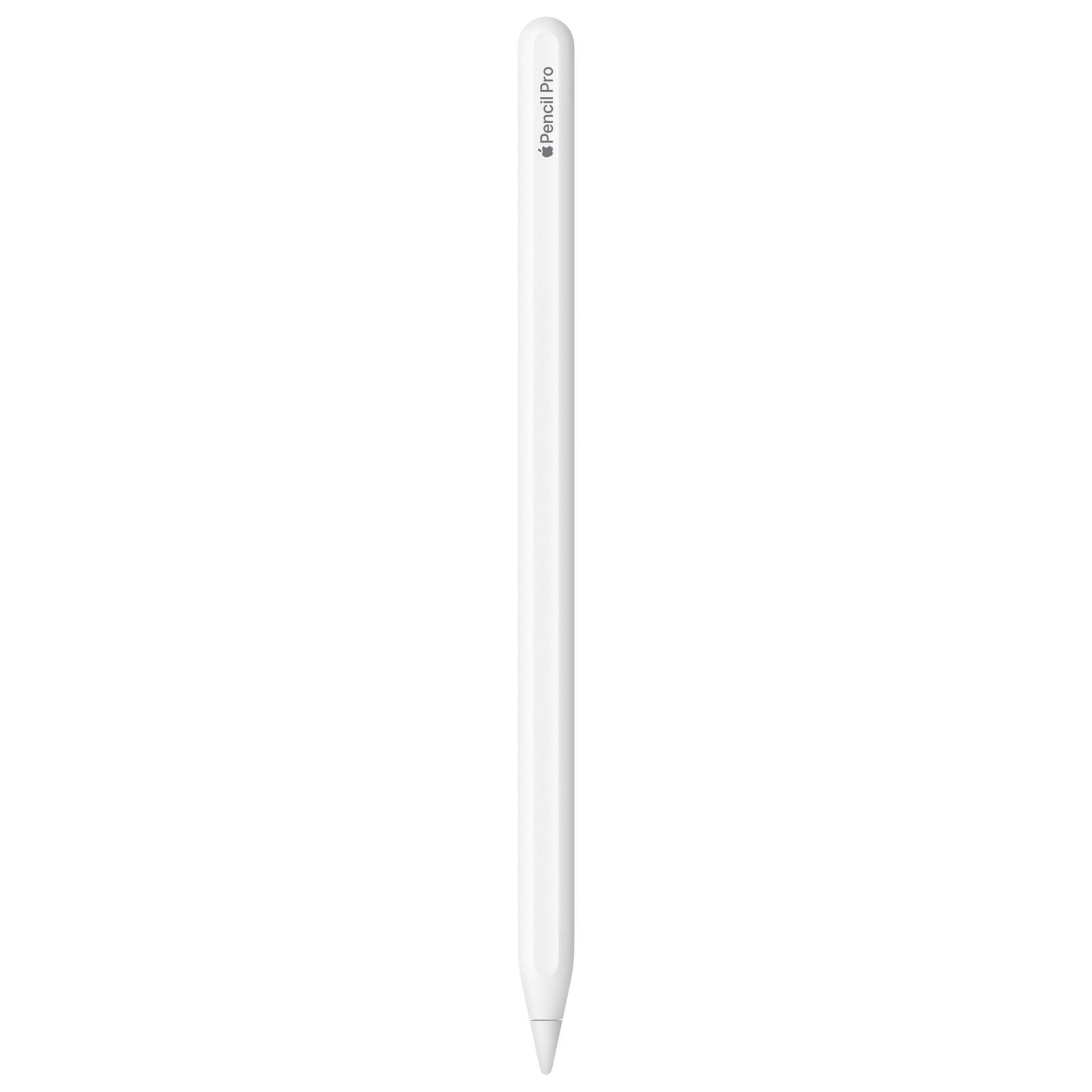
Apple Pencil Pro
The Apple Pencil Pro is the one accessory you can't skip. Apple lists pressure sensitivity, tilt, low latency, pixel-perfect precision and palm rejection support, plus features built for artists: hover, which previews your stroke before the tip touches the screen; squeeze, which opens a palette of tools, line weights and colors; and barrel roll, which uses a gyroscope so you can rotate the pencil to turn shaped brushes.
A custom haptic engine gives a subtle tap when you squeeze or double-tap, and Find My helps you locate it if it goes missing. It pairs, charges and stores magnetically on the side of a compatible iPad.
Check compatibility before you buy. Apple says it works with the iPad Pro (M4 and M5), iPad Air (M2, M3 and M4) and iPad mini (A17 Pro and A20 Pro). The standard iPad (A16) doesn't support it; it works with the $79 Apple Pencil (USB-C), which lacks pressure sensitivity, a big drawback for drawing.
Pros
- 01Pressure, tilt and hover
- 02Squeeze and barrel roll for artists
- 03Haptic feedback
- 04Find My
Cons
- 01Not compatible with the base iPad
- 02$129
| Features | Pressure, tilt, hover, squeeze, barrel roll |
|---|---|
| Feedback | Custom haptic engine |
| Pairing | Magnetic pair, charge and store |
| Extras | Find My, double-tap, free engraving |
| Size / weight | 8.9 × 166 mm, 19.15 g |
| Works with | iPad Pro (M4, M5), iPad Air (M2–M4), iPad mini (A17 Pro, A20 Pro) |
2. Best paper feel
Paperlike 3 iPad Screen Protector
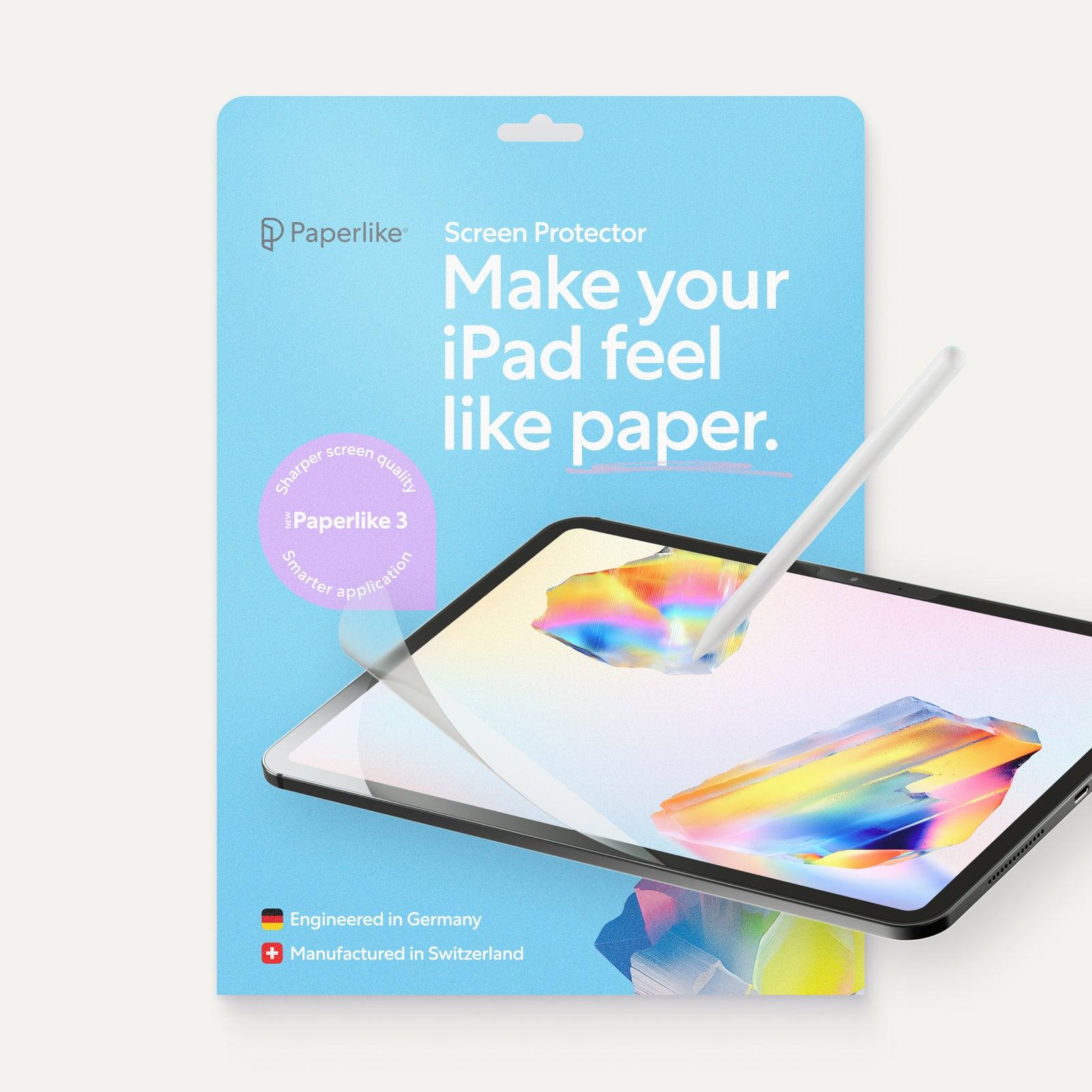
A glass iPad screen feels slippery under a Pencil. Paperlike is the best-known fix: a matte screen protector that Paperlike says is designed to replicate the sensation of high-quality Japanese paper, with the perfect resistance for writing and drawing. It also offers strong glare reduction.
Paperlike says the new Paperlike 3 keeps the same paper-feel technology as the 2.1 but is even gentler on Pencil tips, more resistant to polishing over time and easier to install, thanks to its Butterfly Application System with a dust-capture layer. Each box includes two protectors and a Helper Tool, and the Pencil still attaches and charges normally.
It's made in Switzerland, about 0.095mm thick, and available for every current iPad, from the mini to the 13-inch Pro; pick your model on Paperlike's site. Paperlike offers a 100-day satisfaction guarantee.
Pros
- 01Paper-like drawing resistance
- 02Gentler on tips than 2.1
- 03Two protectors per pack
- 04Easy Butterfly install
Cons
- 01$49.99 for a two-pack
- 02Must choose the exact iPad model
| Material | High-grade PET, about 0.095 mm |
|---|---|
| In the box | 2 protectors, Helper Tool, Butterfly install system |
| Feel | Designed to replicate Japanese paper |
| Glare | Strong glare reduction |
| Made in | Switzerland (designed in Germany) |
| Guarantee | 100-day satisfaction guarantee |
| Fits | Current iPad Pro, Air, iPad and mini |
3. Best drawing stand
Twelve South HoverBar Duo
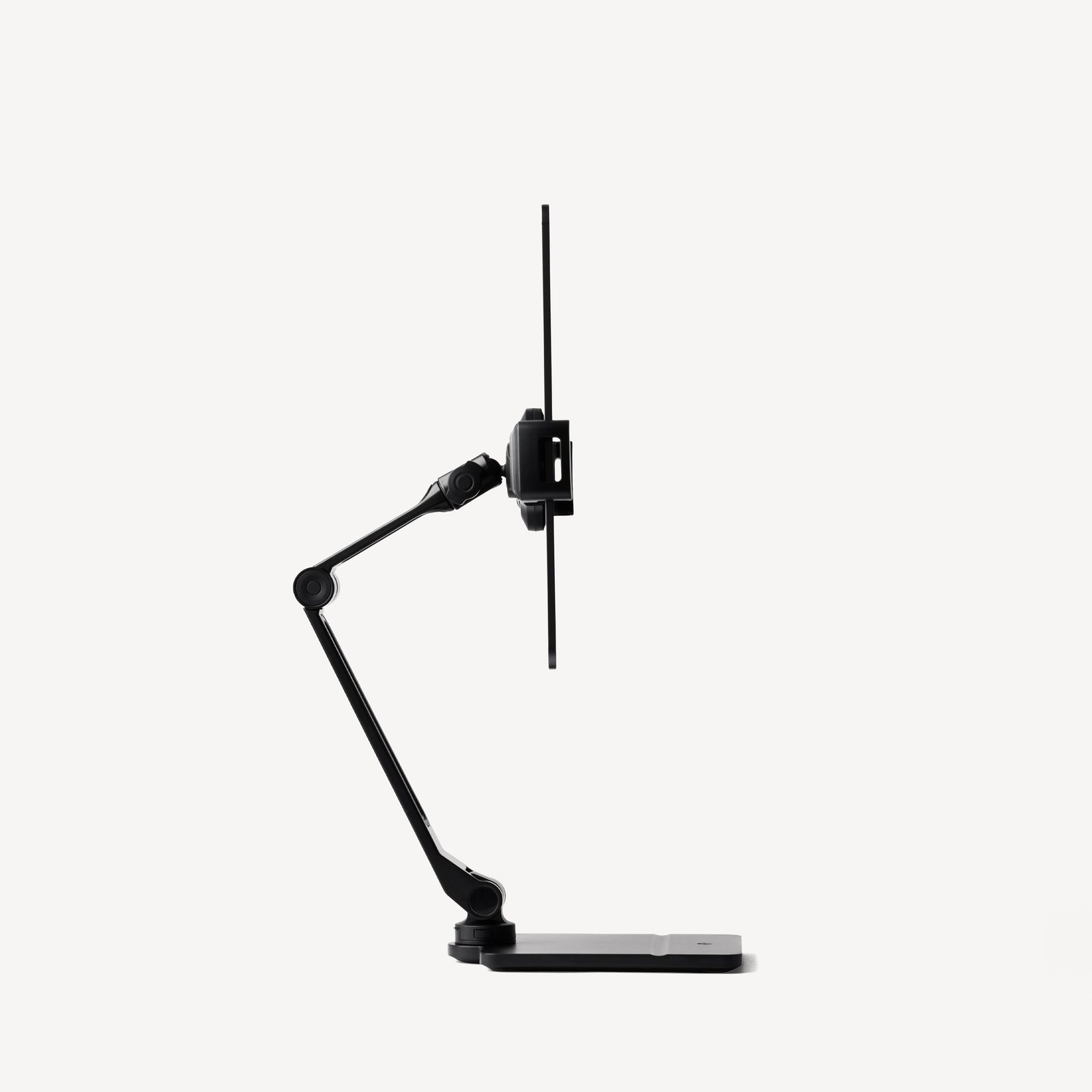
Drawing flat on a desk for hours strains your neck. Twelve South's HoverBar Duo holds your iPad on an adjustable arm, so you can position it at a comfortable angle and height. It can stand on its base or clamp to a shelf or desk edge from 10 to 34mm thick, and its arm reaches 15 inches fully extended.
Its iPad clip holds tablets up to 220mm wide and at least 127mm tall, which covers iPads from the mini up. It weighs 2.51 pounds.
Twelve South offers a two-year limited warranty on purchases made on or after June 1, 2026, and 30-day returns on its own site. If you want a simpler, lower option, Twelve South's support pages describe its Curve Mini as usable as a low-angle drawing stand.
Pros
- 01Adjustable arm for comfortable posture
- 02Desk base or shelf clamp
- 03Fits iPad mini to large iPads
- 042-year warranty
Cons
- 01Angle range not published
- 02Takes desk space
| Mounting | Desk base or shelf clamp |
|---|---|
| Arm reach | 15 in fully extended |
| iPad clip | Up to 220 mm wide, min 127 mm tall |
| Clamp range | 10–34 mm |
| Weight | 2.51 lb |
| Warranty | 2 years (purchases from June 1, 2026) |
4. Best drawing glove
SmudgeGuard 2 (two-finger glove)
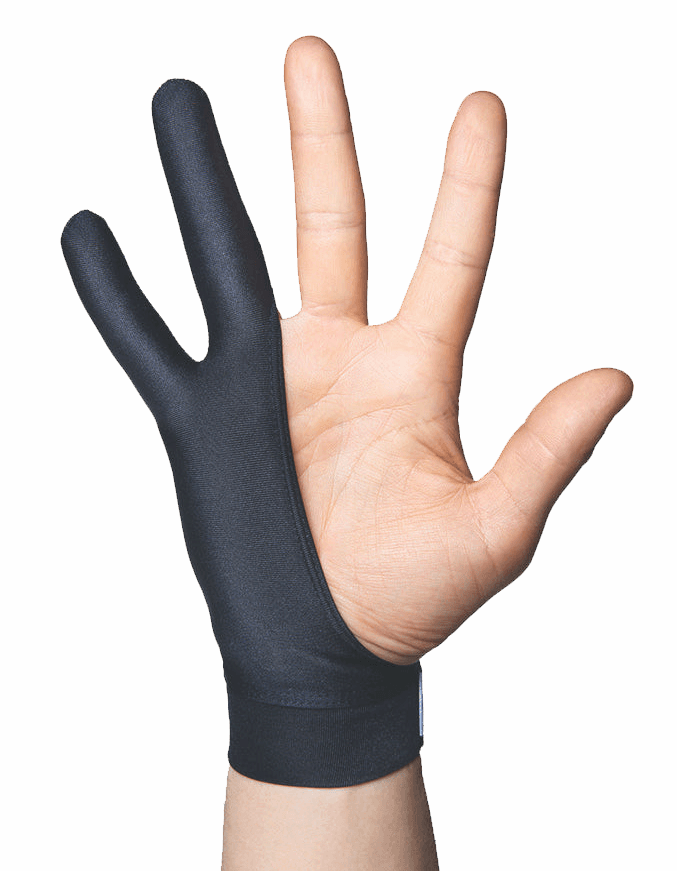
When you rest your hand on the screen, skin can drag and leave smudges. SmudgeGuard's two-finger glove covers your pinky and ring finger, the part of your hand that touches the iPad, and SmudgeGuard says it gives smoother gliding, reduces friction and prevents unwanted smudges.
It's made from a nylon and spandex blend that SmudgeGuard describes as tablet-safe and scratch-free, and it works for left- and right-handed artists. The same glove works on paper with pencil, charcoal and pastel, if you also draw traditionally.
At $18.99, it's a cheap upgrade. If you only want to cover your pinky, the SmudgeGuard 1 is $16.99. Hand wash it in cold water and let it air dry.
Pros
- 01Smoother hand glide
- 02Prevents smudges
- 03Left or right hand
- 04Inexpensive
Cons
- 01Palm rejection still comes from the iPad and Pencil
- 02Size choice matters
| Coverage | Pinky and ring finger |
|---|---|
| Material | Nylon and spandex |
| Hands | Left or right |
| Care | Hand wash cold, air dry |
| Also | SmudgeGuard 1 (pinky only), $16.99 |
5. Best spares
Apple Pencil Tips (4 pack)
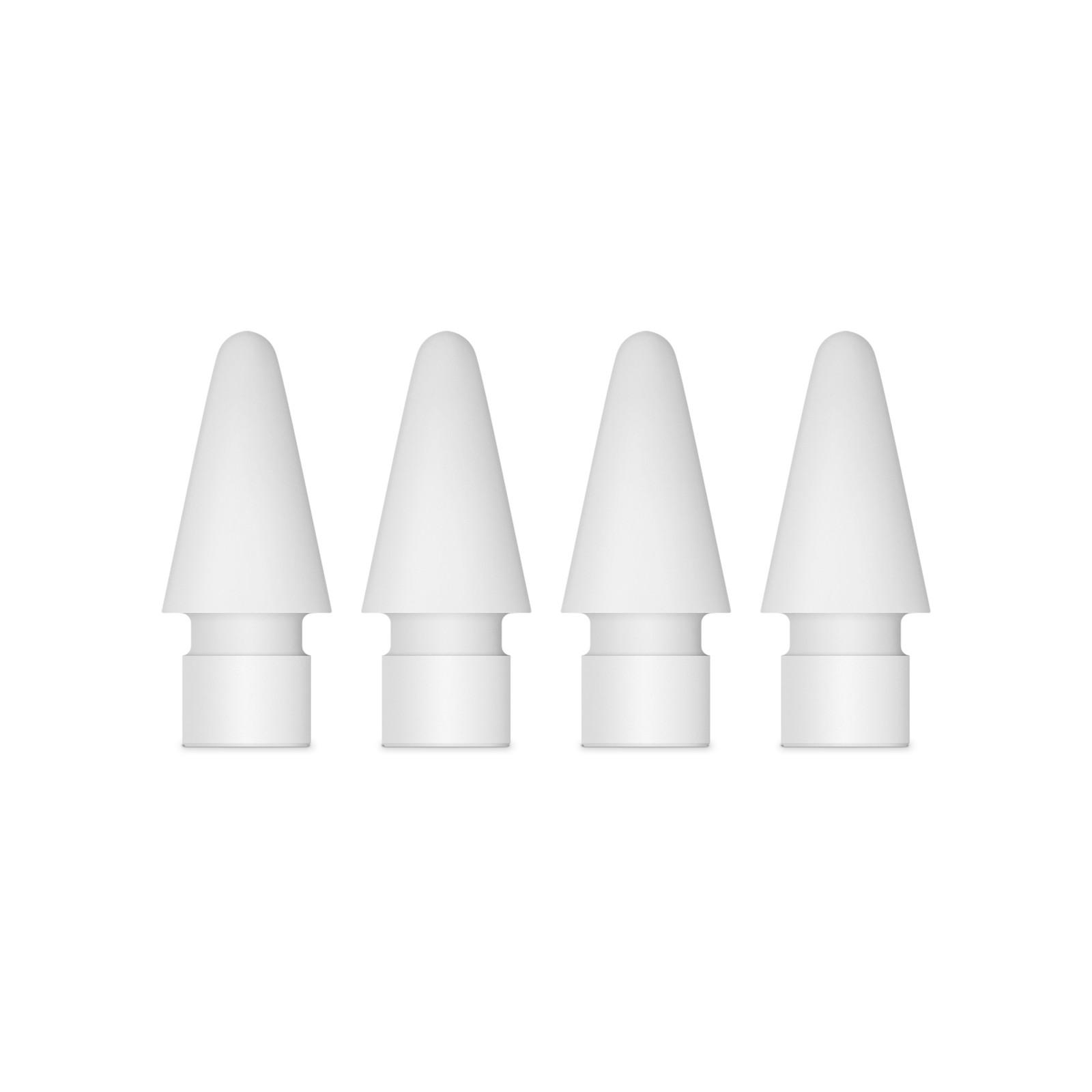
Pencil tips wear down over time, so keep spares. Apple's four-pack costs $19 and fits the Apple Pencil Pro, second-generation, USB-C and first-generation Pencils. Just unscrew the old tip and screw on a new one.
If you use a Paperlike protector, Paperlike's own Pencil Tips ($19.99) are worth a look. Paperlike says they're made from a hard material that wears out more slowly than Apple's tips, so heavy daily users might replace them about every three months, and that on Apple's nano-texture glass they give a comparable paper feel even without a protector.
Pros
- 01Four tips for $19
- 02Fit every Apple Pencil
- 03Screw on in seconds
Cons
- 01Softer than Paperlike's harder tips, per Paperlike
| In the box | 4 tips |
|---|---|
| Works with | Pencil Pro, 2nd gen, USB-C, 1st gen |
| Alternative | Paperlike Pencil Tips, $19.99 |
6. Best keyboard case
Logitech Combo Touch for iPad Pro
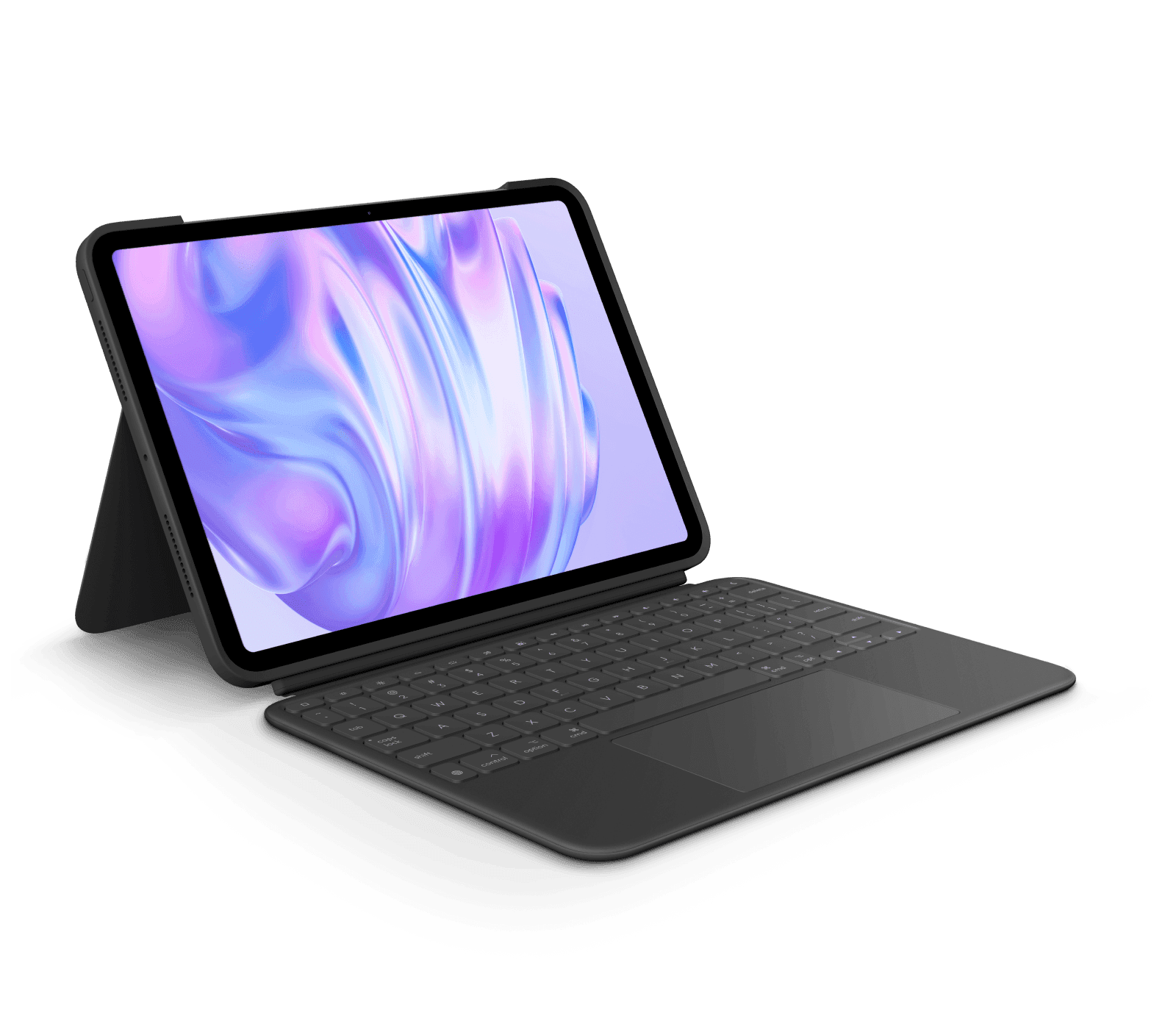
Keyboard shortcuts speed up drawing apps, and a case protects your iPad when you travel. Logitech's Combo Touch does both. It has four modes, including a Sketch mode for drawing, an ultra-flexible kickstand and a detachable keyboard, so you can draw without the keys in the way.
The keyboard is powered through the iPad's Smart Connector, so it never needs charging, and it has 16 levels of backlighting, a full row of iPadOS shortcut keys and a Multi-Touch trackpad. The Apple Pencil attaches without removing the case, and the case protects the front, back and corners.
The iPad Pro version is $229.99 for 11-inch models and $259.99 for 13-inch, and Logitech also makes versions for the iPad Air and iPad. It comes with a one-year limited warranty.
Pros
- 01Sketch mode and flexible kickstand
- 02Detachable keyboard, no charging
- 03Pencil stays attached
- 04Full protection
Cons
- 01Adds weight (474–660 g)
- 02Pricier than a basic case
| Modes | Type, View, Sketch, Read |
|---|---|
| Keyboard | Detachable, backlit, iPadOS shortcut row |
| Power | Smart Connector, no charging |
| Trackpad | Multi-Touch |
| Pencil | Attaches without removing the case |
| Weight | 474 g (11"), 660 g (13") |
| Warranty | 1 year |
Which Apple Pencil works with your iPad?
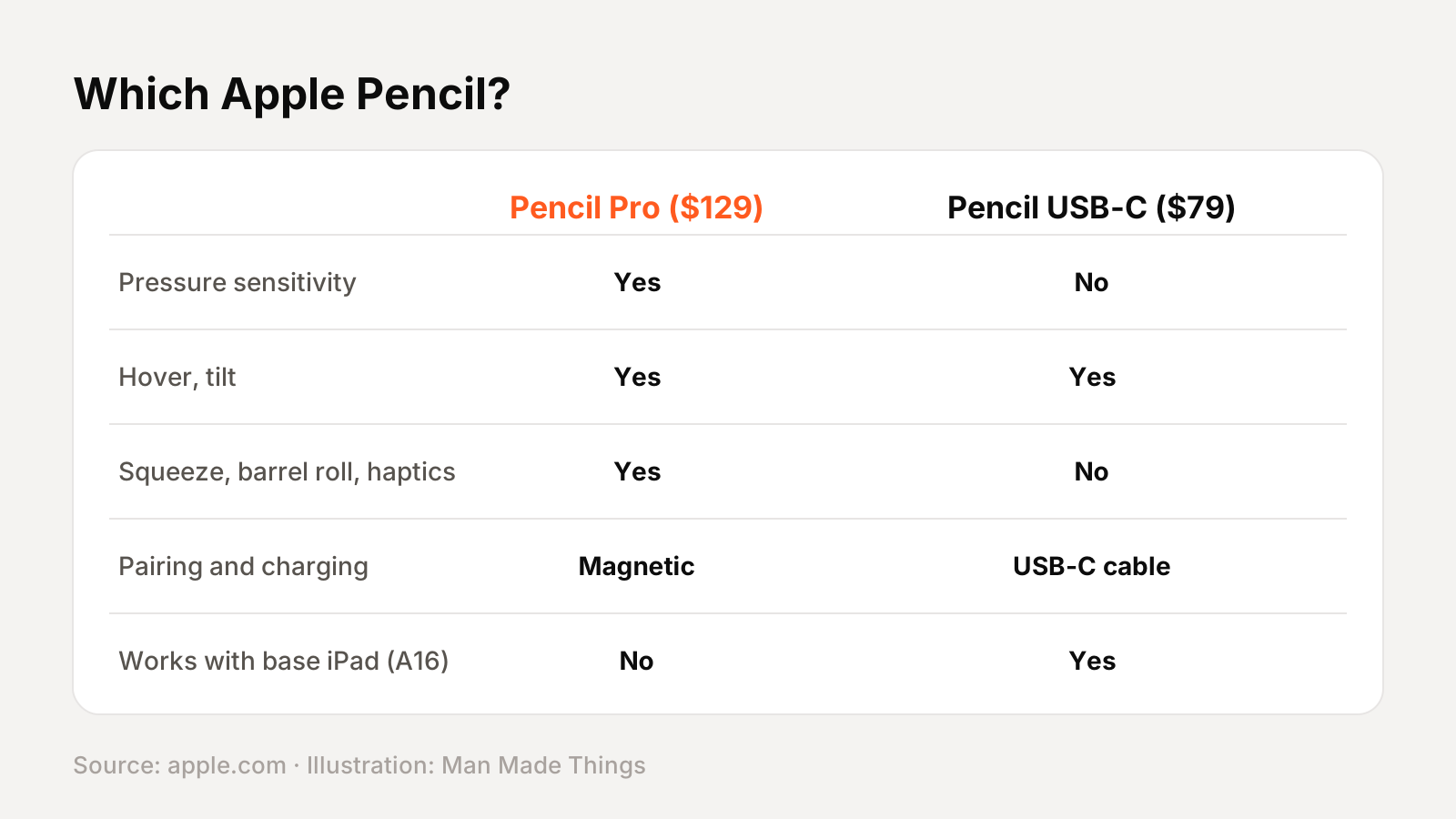
This is the most important compatibility check for an artist:
- Apple Pencil Pro ($129): iPad Pro (M4, M5), iPad Air (M2, M3, M4) and iPad mini (A17 Pro, A20 Pro). It has pressure sensitivity, tilt, hover, squeeze, barrel roll and haptics.
- Apple Pencil (USB-C) ($79): works with every current iPad, including the base iPad (A16). Apple lists tilt and hover, but no pressure sensitivity, which matters a lot for drawing natural strokes.
If you're buying an iPad mainly for drawing, Apple's current lineup starts at $449 for the iPad, $699 for the iPad mini, $749 for the iPad Air and $1,199 for the iPad Pro. Only the Air, mini and Pro support the Pencil Pro. The iPad Pro adds ProMotion, Apple's high refresh rate display technology, and an optional nano-texture glass, which Paperlike says gives a paper-like feel with its tips even without a protector.
Screen protector or nano-texture glass?
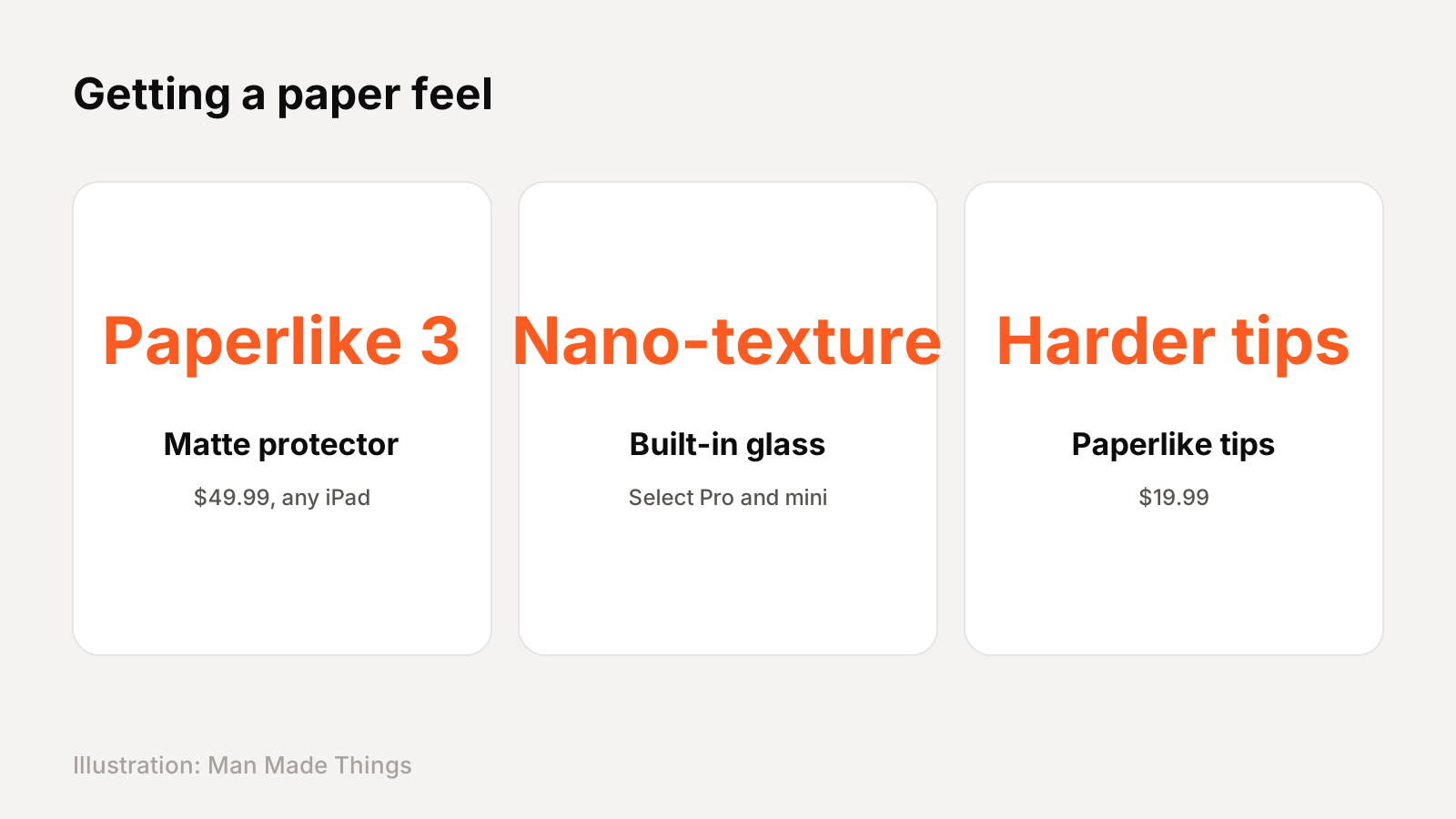
Many artists want the slight resistance of paper. There are two ways to get it:
- A matte screen protector, like the Paperlike 3, which works on any current iPad and costs $49.99 for two. Paperlike says it's designed to replicate high-quality Japanese paper and reduces glare.
- Apple's nano-texture glass, an option on some iPad Pro and iPad mini configurations, according to Apple. Apple lists it on the 1TB and 2TB iPad Pro and on 256GB and 512GB iPad mini models.
Paperlike says the Paperlike 3 is gentler on tips than its 2.1, and that its own harder tips wear more slowly, but keep spares on hand.
A protector is the cheaper, reversible option. Nano-texture is built in, but it's only available on higher-priced configurations.
Set up a comfortable drawing station
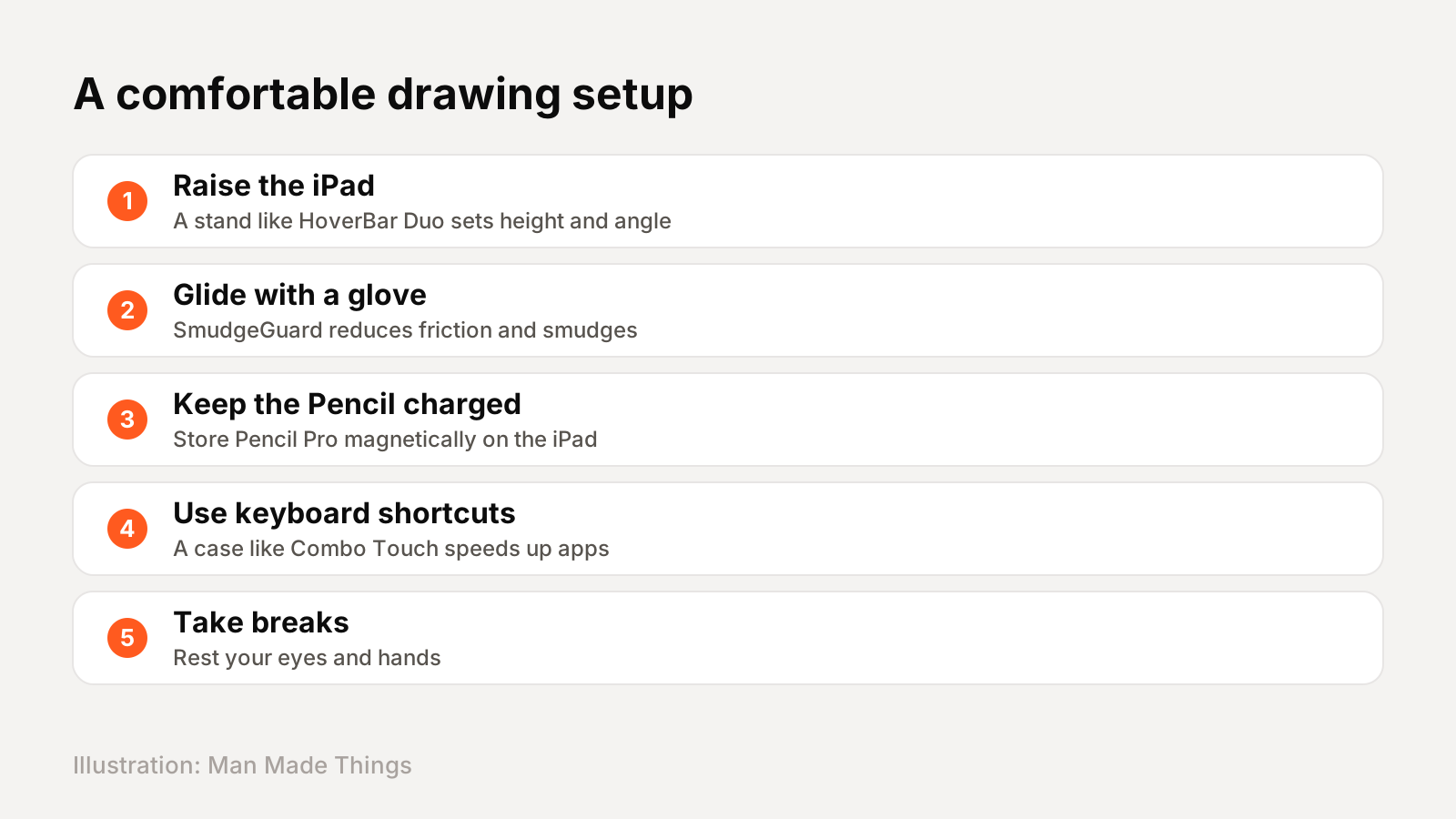
Long drawing sessions are easier on your body with the right setup:
- Raise and angle the iPad. A stand like the HoverBar Duo lets you set a comfortable height and angle instead of hunching over a flat tablet.
- Glide, don't drag. A SmudgeGuard glove reduces friction where your hand rests.
- Keep the Pencil charged. The Apple Pencil Pro charges magnetically on the side of a compatible iPad, so store it there between sessions.
- Use shortcuts. A keyboard case like the Logitech Combo Touch puts undo, brush size and app shortcuts under your other hand.
- Take breaks. Look away from the screen and stretch your hand regularly.
For photographers and designers who also edit on a Mac, our best monitors for MacBook guide covers color-accurate displays.
Frequently asked questions
What's the best iPad accessory for drawing?
+
The Apple Pencil Pro ($129), with pressure sensitivity, hover, squeeze, barrel roll and haptics, on iPad Pro, iPad Air and iPad mini.
Does the base iPad work with Apple Pencil Pro?
+
No. Apple says the iPad (A16) works with the Apple Pencil (USB-C), which doesn't have pressure sensitivity.
Is a paper-feel screen protector worth it?
+
For many artists, yes. Paperlike says its protector is designed to replicate high-quality Japanese paper and reduce glare.
How often should I replace Apple Pencil tips?
+
When they wear down. Paperlike says heavy daily users of its harder tips might replace them about every three months.
Sources
Editor-in-Chief
Rahul has been writing about gadgets and software since 2013, first at Thetechhacker and now at Man Made Things. He edits every review on the site and signs off on every verdict.
More from Rahul →