The Best USB-C Hubs and Docks for MacBook: UGREEN and CalDigit
Three hubs and docks for MacBook Air and MacBook Pro, from a $16 travel hub to a Thunderbolt 5 desk dock, plus how many monitors your Mac can actually run.
We may earn a commission when you buy through links on this page. Learn more
Quick answer
The UGREEN Revodok Pro 9-in-1 ($44.99) is the best USB-C hub for most MacBook owners, with HDMI, Ethernet, card readers and 100W charging pass-through. For a full desk setup, the CalDigit TS5 Plus ($499.99) is a Thunderbolt 5 dock with 140W charging and 10Gb Ethernet. The UGREEN 5-in-1 ($15.98) is the cheap travel pick. How many monitors you can run depends on your Mac's chip, not the hub.
Modern MacBooks are beautiful, thin and almost completely out of ports. Want to plug in a monitor, a USB stick, an SD card from your camera and a charger at the same time? You need a hub or a dock.
The trouble is, hubs are a minefield. Some promise "dual 4K displays" that your Mac physically can't run. Others say "100W charging" but pass far less to your laptop. And the difference between USB-C, USB4 and Thunderbolt confuses almost everyone.
So I picked three for three situations: a travel hub, a full desk dock and a budget option. I checked every spec on the brand's site, and the display rules on Apple's own support pages. These are research-based picks with no star scores yet. Let's get into it.
Our picks at a glance
1. Best overall hub
UGREEN Revodok Pro 9-in-1 USB-C Hub
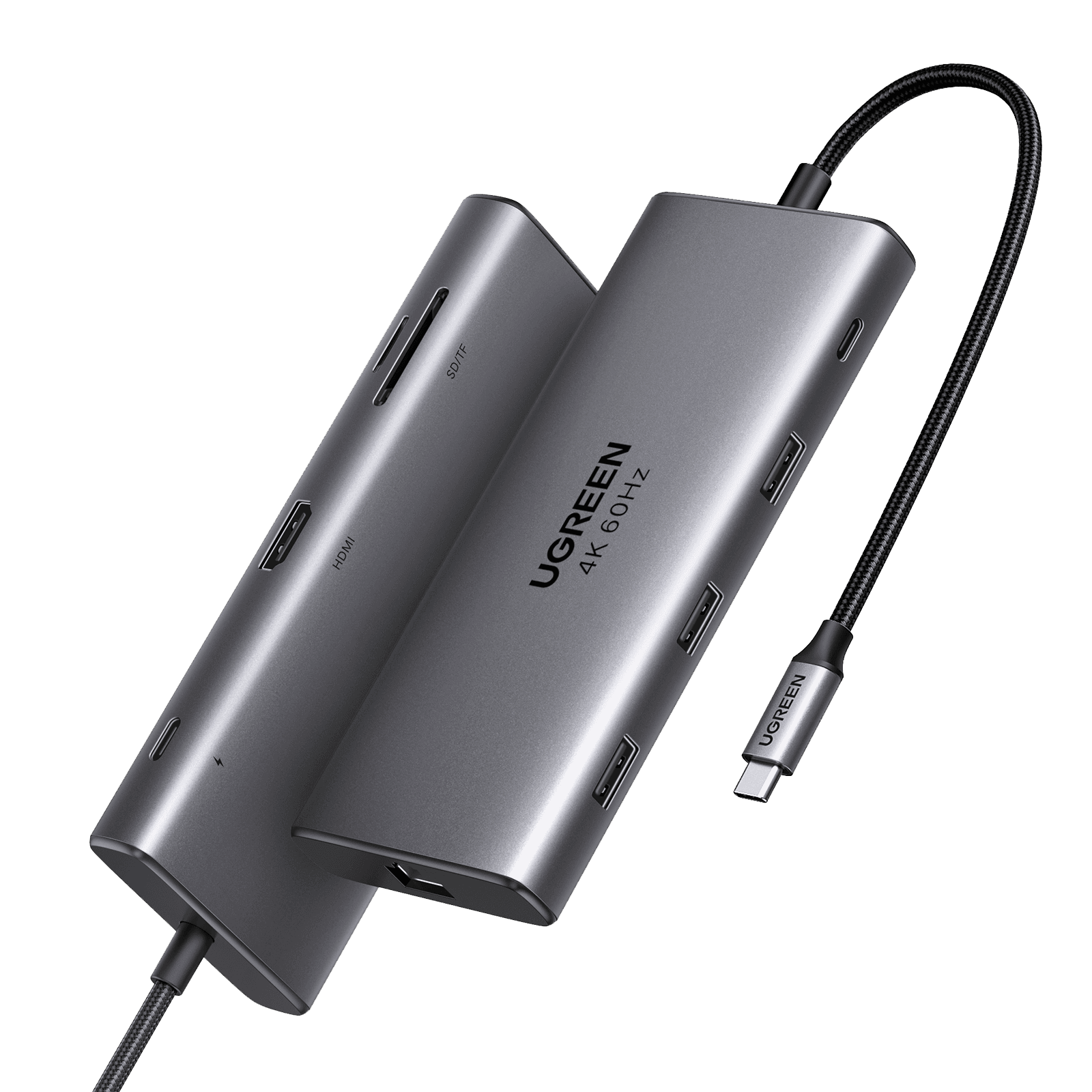
This is the hub I'd keep in a laptop bag. It covers almost everything a MacBook owner plugs in: an HDMI port for a 4K monitor at a smooth 60Hz, wired Gigabit Ethernet for flaky hotel Wi-Fi, SD and microSD slots for cameras, and four USB ports, two of them at fast 10Gbps.
You plug your MacBook charger into the hub's USB-C power port, and the hub passes power through while it runs everything else. UGREEN lists 100W Power Delivery input, though it doesn't say exactly how much reaches the laptop, since the hub keeps some for itself.
It supports one external monitor. That's not a flaw of the hub. Many MacBooks only allow one or two displays anyway, and getting more needs a Thunderbolt dock. UGREEN often runs a discount code on its own store.
Pros
- 01Covers HDMI, Ethernet, SD cards and fast USB
- 024K at 60 Hz output
- 03Two 10 Gbps data ports
- 04Compact enough for travel
Cons
- 01One external display only
- 02UGREEN doesn't state exact pass-through wattage
| Connection | USB-C |
|---|---|
| Display | 1 × HDMI 2.0, up to 4K at 60 Hz (one external monitor) |
| Data | 1 × USB-C 10 Gbps, 1 × USB-A 10 Gbps, 2 × USB-A 5 Gbps |
| Charging | USB-C Power Delivery input, up to 100 W |
| Network | Gigabit Ethernet |
| Cards | SD and microSD |
2. Best desk dock
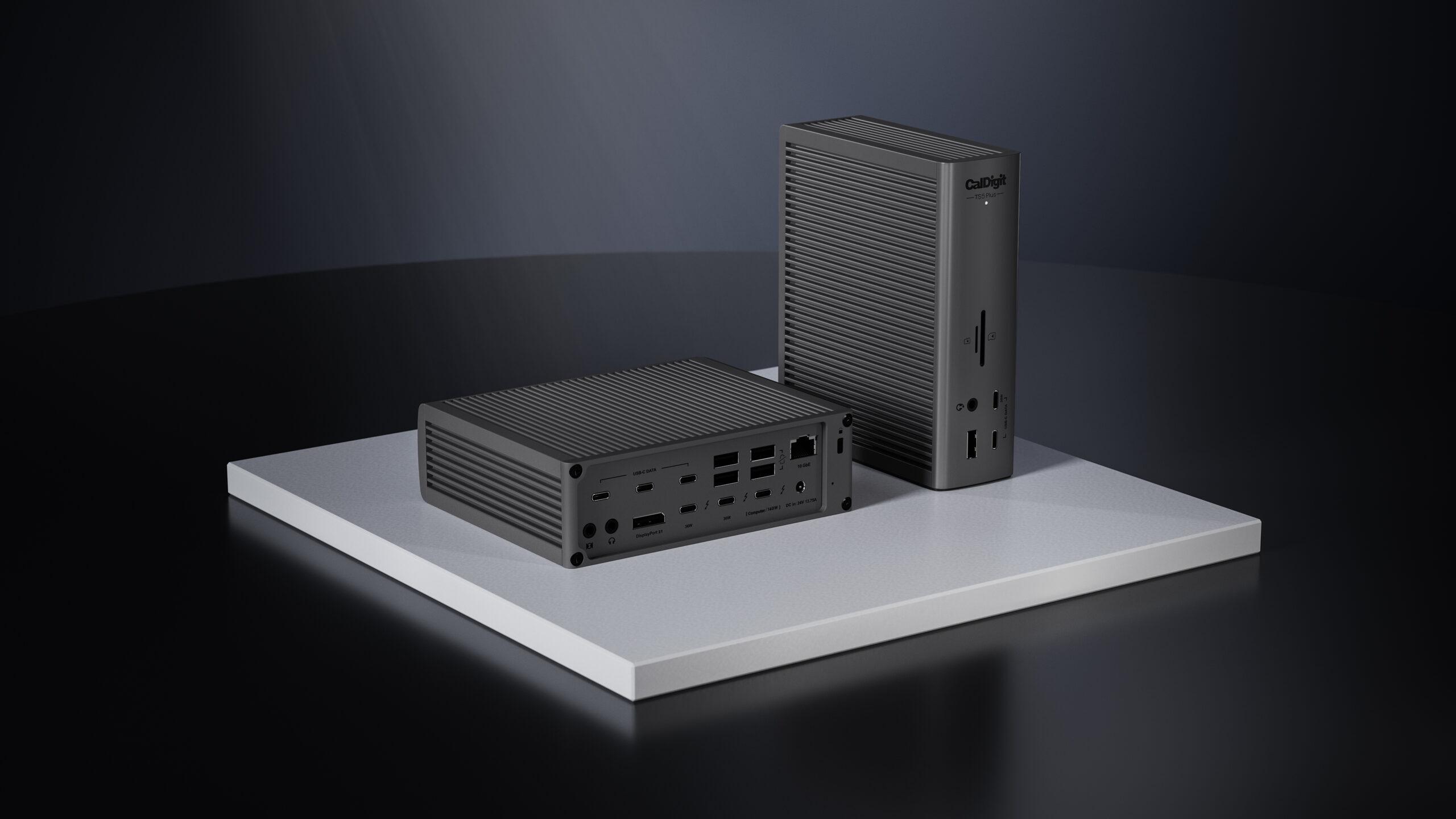
CalDigit TS5 Plus Thunderbolt 5 Dock
If your MacBook lives on a desk most of the day, a Thunderbolt dock turns it into a full workstation with one cable. The TS5 Plus is about as complete as docks get: 20 ports, 10 Gigabit Ethernet, UHS-II card readers, audio jacks and up to 140W of charging for your MacBook.
Monitors connect to the two spare Thunderbolt 5 ports or the DisplayPort 2.1. The regular USB ports are for data only. How many displays you can run depends on your Mac's chip. CalDigit says base M1, M2 and M3 Macs are limited to one external monitor through Thunderbolt, while newer chips can run two or more.
At $499.99, it's a big investment. If you don't need Thunderbolt 5, CalDigit still lists the Thunderbolt 4 TS4 for less. Also note it won't work with plain USB-C laptops. It needs a Thunderbolt or USB4 port.
Pros
- 01One cable for everything
- 02Up to 140 W laptop charging
- 0310 Gigabit Ethernet and UHS-II readers
- 04Supports multiple displays on capable Macs
Cons
- 01Expensive at $499.99
- 02Needs a Thunderbolt or USB4 Mac
- 03Display count is still limited by your Mac's chip
| Connection | Thunderbolt 5, 80 Gb/s (up to 120 Gb/s boost) |
|---|---|
| Ports | 20 total: 2 × TB5 downstream, 5 × USB-C, 5 × USB-A, DisplayPort 2.1 |
| Laptop charging | Up to 140 W |
| Network | 10 Gigabit Ethernet |
| Cards | SD 4.0 and microSD 4.0 UHS-II |
| Audio | Front combo jack, rear in and out |
| Requires | Thunderbolt or USB4 Mac, macOS 15 or later |
3. Best budget
UGREEN 5-in-1 USB-C Hub
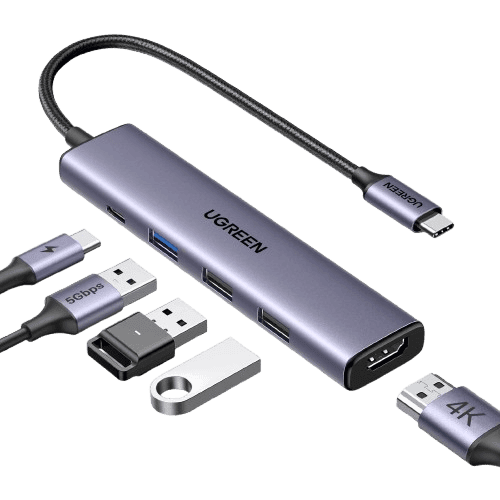
Sometimes you just need a monitor and a couple of USB ports, and this hub does exactly that for about the price of lunch. You get an HDMI port, three USB-A ports and a USB-C charging port so your MacBook keeps charging while you use it.
It's tiny, so it disappears into a laptop bag. There's no Ethernet or card reader, and only one of the three USB ports is the faster 3.0 kind. UGREEN doesn't list the refresh rate for the HDMI port, so if a smooth 60Hz 4K monitor matters to you, step up to the Revodok Pro.
At $15.98, it's also a great spare to keep at the office or in a travel bag.
Pros
- 01Very cheap at $15.98
- 02HDMI plus three USB-A ports
- 03100 W charging input
- 04Tiny and light
Cons
- 01No Ethernet or SD reader
- 02HDMI refresh rate not stated
- 03Only one 5 Gbps USB port
| Display | HDMI, 4K |
|---|---|
| Data | 1 × USB-A 3.0 (5 Gbps), 2 × USB-A 2.0 |
| Charging | USB-C Power Delivery input, up to 100 W |
| Not included | Ethernet, SD card reader |
How many monitors can your MacBook run?
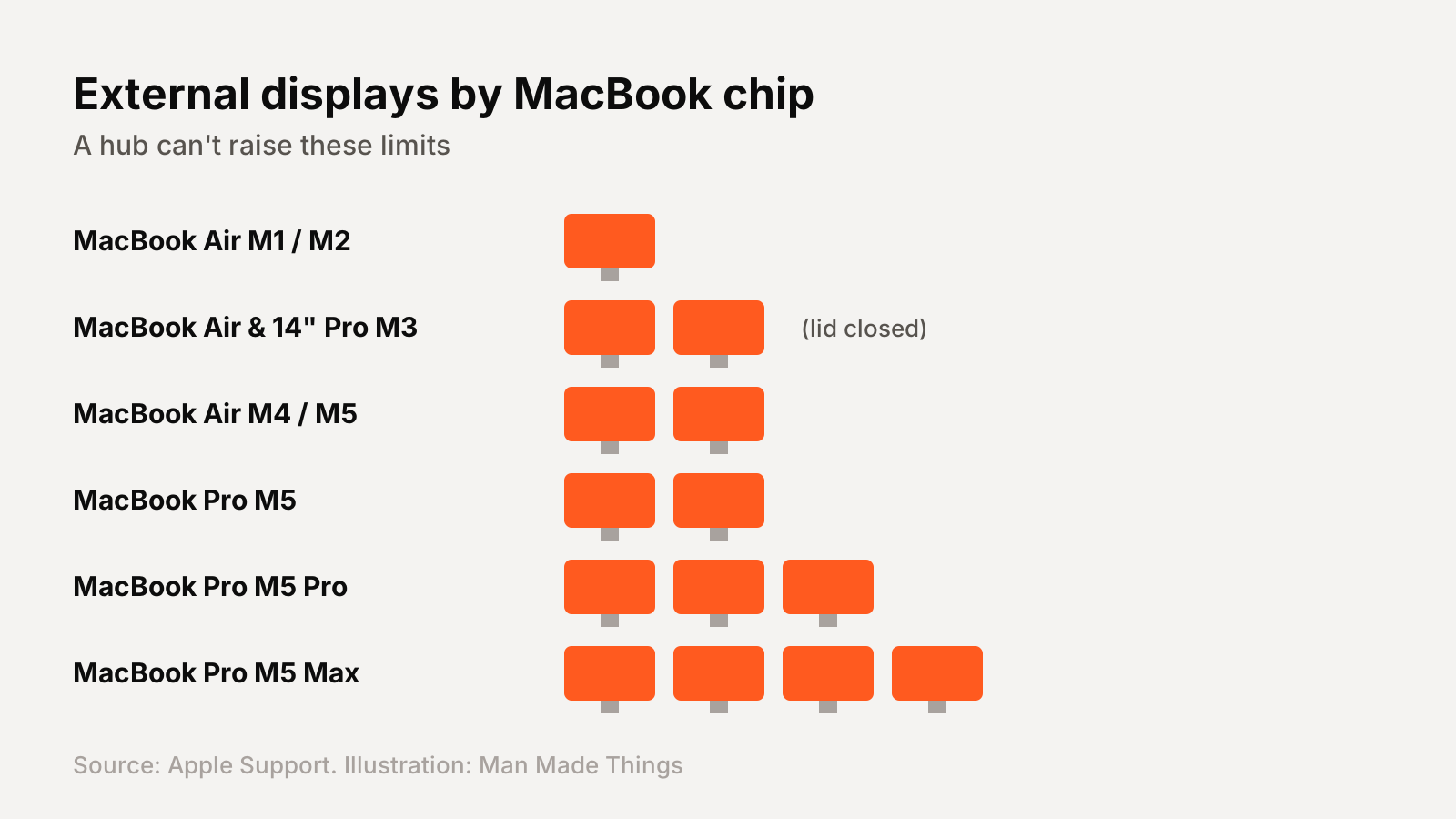
This is the most common hub disappointment, so check it before you buy. The limit comes from your Mac's chip, not the hub. Apple says a hub or daisy chain can carry several displays over one Thunderbolt port, but it "does not increase the maximum number of displays."
From Apple's support pages:
- MacBook Air with M4 or M5: up to two external displays, with the lid open.
- MacBook Air and 14-inch MacBook Pro with M3: two external displays, but only with the lid closed.
- MacBook Pro with M5: up to two. M5 Pro: up to three. M5 Max: up to four.
- Older MacBook Air models with M1 or M2: a single external display.
If a hub promises dual monitors on a MacBook that only supports one, it won't magically work.
Hub vs dock: which do you need?
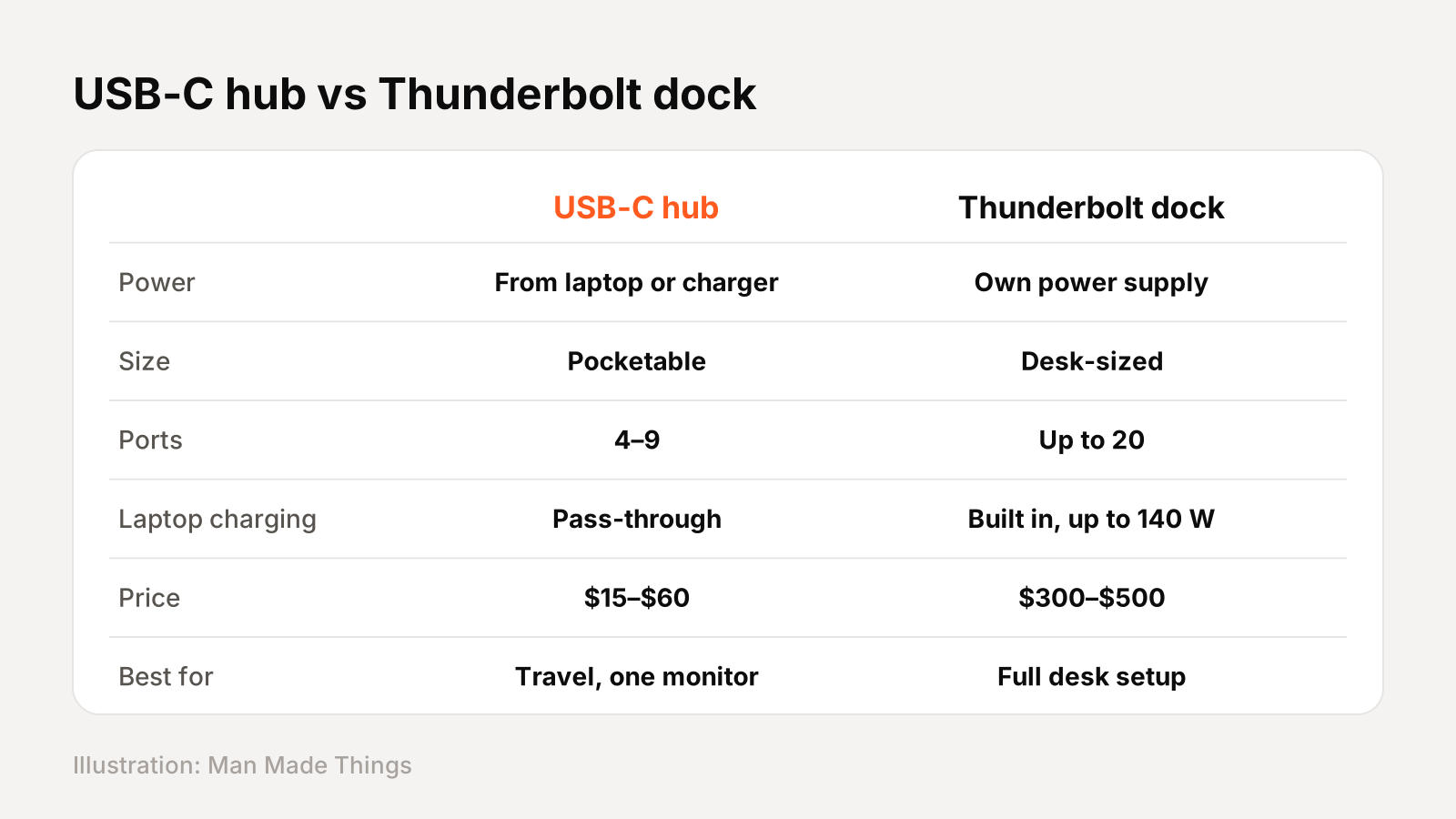
A USB-C hub is small, cheap and powered by your laptop or its charger. It's perfect for travel and light desk use: one monitor, a few USB devices, an SD card.
A Thunderbolt dock has its own power supply, many more ports, faster data, and can charge your laptop on its own. It's built to sit on a desk and turn your MacBook into a desktop with one cable.
Rule of thumb: if you move your laptop around a lot, get a hub. If it stays on a desk connected to monitors most of the day, a dock is worth the money.
One thing people overlook is the cable. A Thunderbolt dock needs a proper Thunderbolt cable to reach full speed, so use the one in the box. If you replace it, buy a certified Thunderbolt cable, not a random USB-C charging cable. Cheap charging cables often carry power but not fast data or video, and that's behind a lot of "my monitor won't show up" complaints. With a plain hub, plug it straight into the Mac rather than through another adapter, which avoids most flaky connections.
Frequently asked questions
What is the best USB-C hub for MacBook?
+
The UGREEN Revodok Pro 9-in-1 is our top pick, with 4K60 HDMI, Gigabit Ethernet, SD and microSD slots, fast USB ports and 100W charging input.
Can a USB-C hub add a second monitor to my MacBook?
+
Only if your Mac's chip supports it. Apple says hubs don't increase the maximum number of displays. Base M1 and M2 MacBook Air models support one external display.
Do I need a Thunderbolt dock or a USB-C hub?
+
A hub is enough for travel and one monitor. A Thunderbolt dock is better for a permanent desk setup with multiple displays, fast storage and high-wattage charging.
Will the CalDigit TS5 Plus work with any USB-C laptop?
+
No. CalDigit says it needs a Thunderbolt or USB4 host and is not compatible with plain USB-C ports.
Sources
- UGREEN: Revodok Pro 9-in-1 USB-C Hub
- UGREEN: 5-in-1 USB-C Hub
- CalDigit: TS5 Plus Thunderbolt 5 Dock
- CalDigit: MacBook multiple monitor support
- Apple Support: External displays with MacBook Air
- Apple Support: Two displays with M3 MacBook Air and MacBook Pro
- Apple Support: MacBook Pro display support
- Apple Support: Mac ports
Editor-in-Chief
Rahul has been writing about gadgets and software since 2013, first at Thetechhacker and now at Man Made Things. He edits every review on the site and signs off on every verdict.
More from Rahul →