The Best External Monitors for MacBook: Apple and Dell
Three monitors for MacBook Air and MacBook Pro: the 5K Apple Studio Display, the 4K 120Hz Dell S2725QC and the $260 Dell S2725DC, plus why pixel density matters on a Mac.
We may earn a commission when you buy through links on this page. Learn more
Quick answer
The Apple Studio Display ($1,599) is the best monitor for a MacBook: a 27-inch 5K Retina screen at 218 ppi, a 12MP camera, six speakers and 96W charging over Thunderbolt 5. The Dell S2725QC ($349.99) is the best value, a 27-inch 4K 120Hz screen with 65W USB-C charging. The Dell S2725DC ($259.99) is a budget 1440p pick.
A MacBook is a great laptop, but at a desk all day, a big external screen changes everything. More room for windows, better posture and one cable that charges your laptop and connects your keyboard and mouse.
Monitors for Macs come with one catch that PC buyers don't think about as much: sharpness. macOS is designed for very high pixel density, which Apple calls Retina. On a lower-density screen, text can look a little softer than on your MacBook's built-in display. That's why the best Mac monitor is often more expensive than an equally sized PC monitor.
I picked three at three budgets and checked every spec on the brand's own US site. For how many displays your MacBook supports, see our USB-C hub and dock guide. These are research-based picks with no star scores.
Before you buy, check two things on your Mac. First, how many external displays it supports, which Apple lists on each model's tech specs page. Second, the ports. A monitor with USB-C or Thunderbolt input and enough charging power lets one cable do everything. An HDMI-only monitor works too, but you'll still need your charger and a separate hub for accessories.
Let's get into it.
Our picks at a glance
1. Best overall
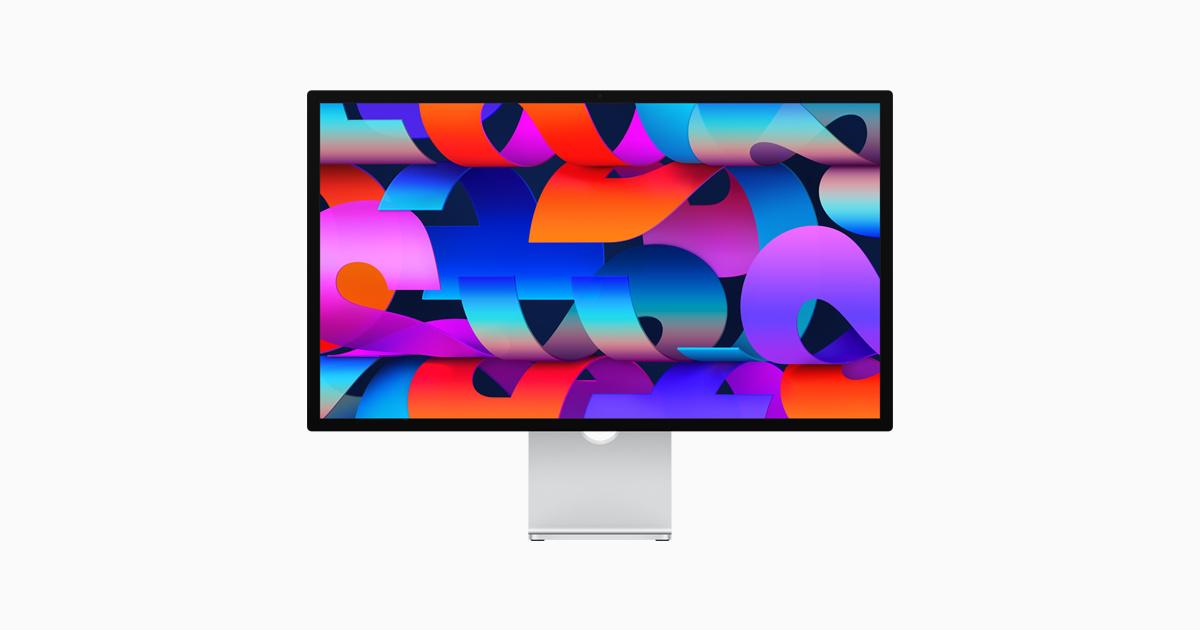
Apple Studio Display
If you want a monitor that looks exactly like your MacBook's screen, only bigger, this is it. The Studio Display has a 27-inch 5K Retina panel at 218 pixels per inch, so macOS text is as sharp as it is on the laptop. It's bright at 600 nits and covers the wide P3 color range.
It's also a full desk setup in one. There's a 12MP Center Stage camera that keeps you in frame on calls, six speakers with Spatial Audio and a three-mic array. Plug in one Thunderbolt 5 cable and it charges your MacBook at 96W, with extra USB-C ports for accessories.
The downsides are price and the stand. The base $1,599 model only tilts. A height-adjustable stand adds $400, and nano-texture anti-glare glass adds $300. You have to choose the stand when you order. It runs at 60Hz, so it's not for gaming, and it needs an Apple silicon Mac on a recent version of macOS.
Pros
- 015K Retina at 218 ppi matches MacBook sharpness
- 02Camera, speakers and mics built in
- 0396W charging over one cable
- 04Thunderbolt 5 and USB-C ports
Cons
- 01Expensive, especially with height-adjustable stand
- 02Base stand only tilts
- 0360Hz refresh rate
| Screen | 27-in 5K Retina, 5120 × 2880, 218 ppi, 600 nits, 60Hz |
|---|---|
| Color | Wide color (P3), 1 billion colors, True Tone |
| Camera and audio | 12MP Center Stage camera, six speakers, three mics |
| Ports | 2 × Thunderbolt 5, 2 × USB-C (10Gb/s) |
| Laptop charging | 96W |
| Stand | Tilt standard; height-adjustable +$400; VESA option |
| Price range | $1,599 to $2,299 depending on glass and stand |
2. Best value
Dell S 27 4K USB-C Monitor
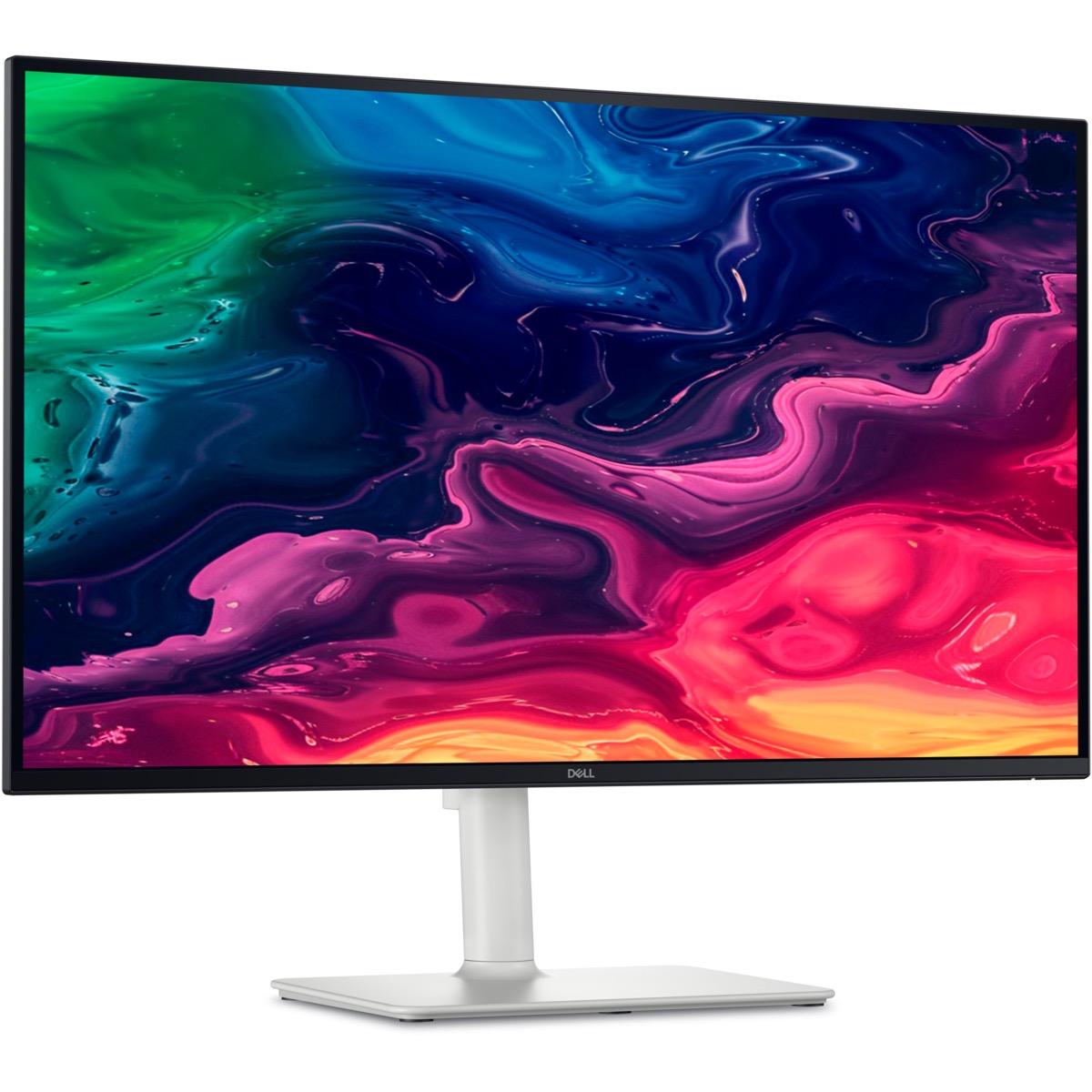
The S2725QC is the monitor I'd tell most MacBook owners to buy. You get a 27-inch 4K IPS screen at 163 pixels per inch, which looks good with macOS's scaling, plus a 120Hz refresh rate that makes scrolling and moving windows feel smooth.
One USB-C cable carries video and charges your MacBook at up to 65W, which is enough for a MacBook Air and lighter MacBook Pro workloads. The stand adjusts for height, tilt, swivel and pivot, which the base Studio Display can't match. There are two HDMI ports for a game console or a second computer.
It's not Retina-sharp like the Studio Display, and 99% sRGB is a narrower color range than P3. For photo or video work, that matters. For everything else, it's a fantastic screen for about a fifth of the price.
Pros
- 014K at 120Hz for smooth scrolling
- 0265W USB-C charging over one cable
- 03Fully adjustable stand
- 04Great value at $349.99
Cons
- 01Not as sharp as 5K Retina
- 02sRGB rather than wide P3 color
- 0365W may be low for heavy MacBook Pro use
| Screen | 27-in 4K (3840 × 2160), 163 ppi, IPS, 120Hz |
|---|---|
| Brightness | 350 nits |
| Color | 99% sRGB |
| USB-C | DisplayPort Alt Mode, up to 65W charging |
| Other ports | 2 × HDMI 2.1, downstream USB-C and USB-A |
| Stand | Height, tilt, swivel and pivot |
| Warranty | 1 year |
3. Best budget
Dell S 27 QHD USB-C Monitor
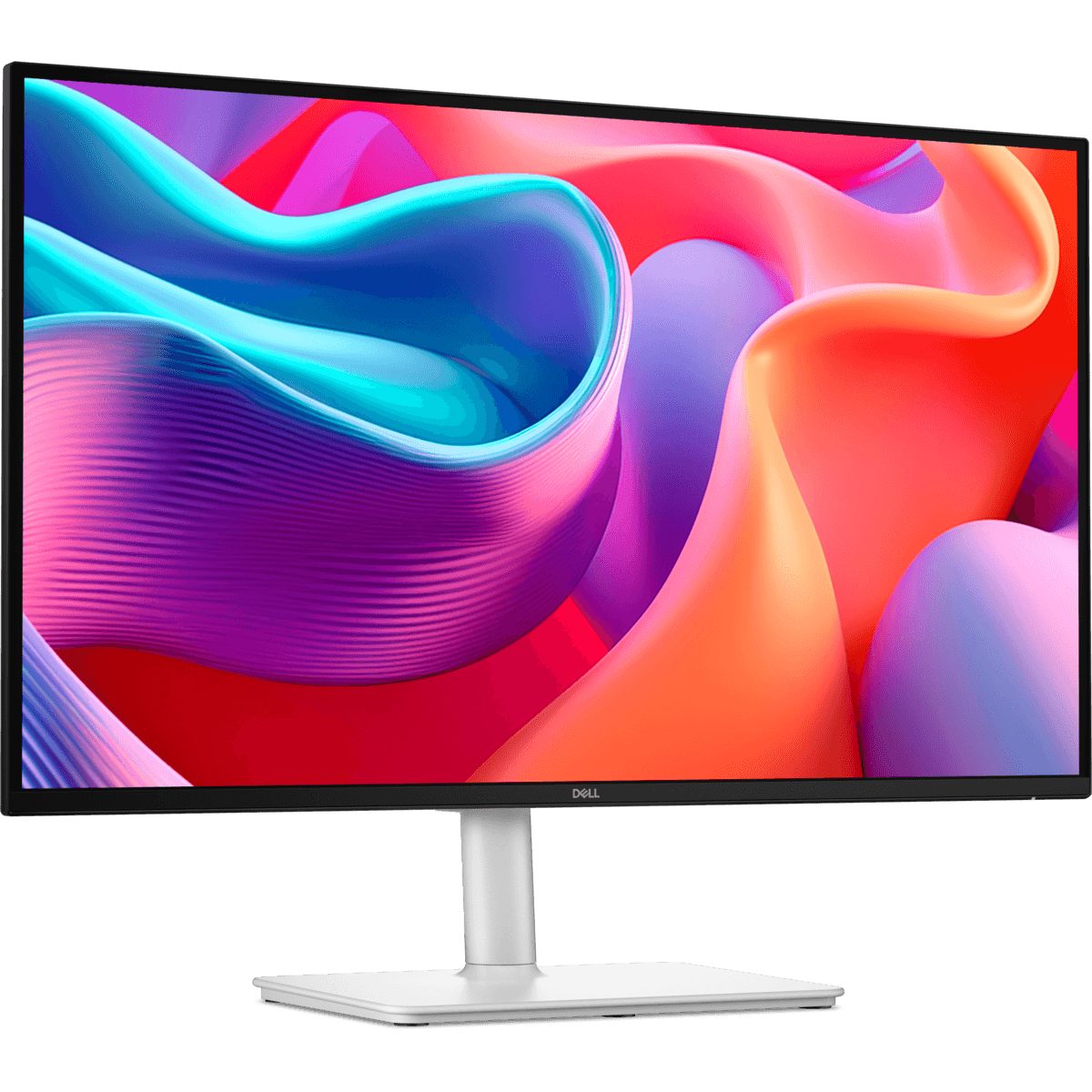
If you mainly want more screen space on a budget, the S2725DC delivers. It's a 27-inch 1440p IPS display with a fast 144Hz refresh rate, a single USB-C cable with 65W charging, and the same fully adjustable stand as its 4K sibling.
The trade-off is sharpness. At 109 pixels per inch, it's well below the density macOS is designed for, so text will look softer than on your MacBook, especially if you sit close. Many people don't mind, but if you read and write all day, the extra $90 for the 4K S2725QC is worth it.
Dell's page lists the warranty two different ways, as both 1 year and a 3-year exchange service, so check the terms at checkout.
Pros
- 01Affordable at $259.99
- 02144Hz refresh rate
- 0365W USB-C charging
- 04Fully adjustable stand
Cons
- 01Text looks softer at 109 ppi on macOS
- 02sRGB color only
- 03Warranty terms unclear on Dell's page
| Screen | 27-in QHD (2560 × 1440), 109 ppi, IPS, 144Hz |
|---|---|
| Brightness | 350 nits |
| Color | 99% sRGB |
| USB-C | Up to 65W charging |
| Other ports | HDMI 2.1, DisplayPort 1.4, downstream USB-C |
| Stand | Height, tilt, swivel and pivot |
Why pixel density matters on a Mac
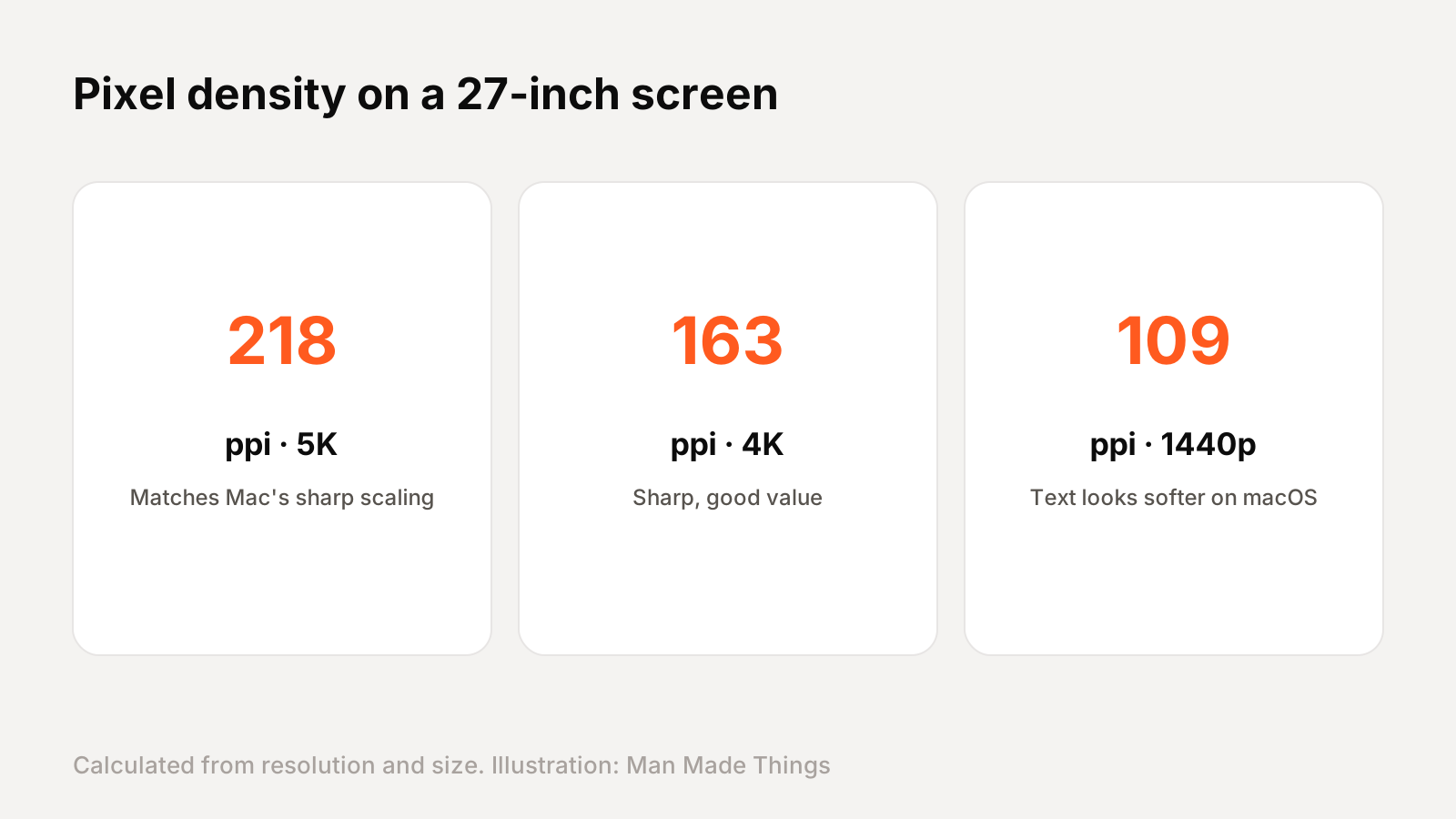
macOS looks sharpest on very high-density screens. Apple's MacBooks and the Studio Display run at around 218 pixels per inch at 27 inches. That's why everything looks so crisp.
On a 27-inch screen:
- 5K (5120 × 2880): 218 ppi. Matches Apple's Retina sharpness exactly.
- 4K (3840 × 2160): 163 ppi. Very good. Text is sharp, though not quite as crisp as 5K.
- 1440p (2560 × 1440): 109 ppi. Fine for many people, but text looks noticeably softer next to a MacBook.
Apple recommends using the default resolution your Mac picks for each display. You can choose a different scaled resolution in System Settings > Displays, but Apple notes it may affect performance and some windows may not fit.
Connecting and setting up your monitor
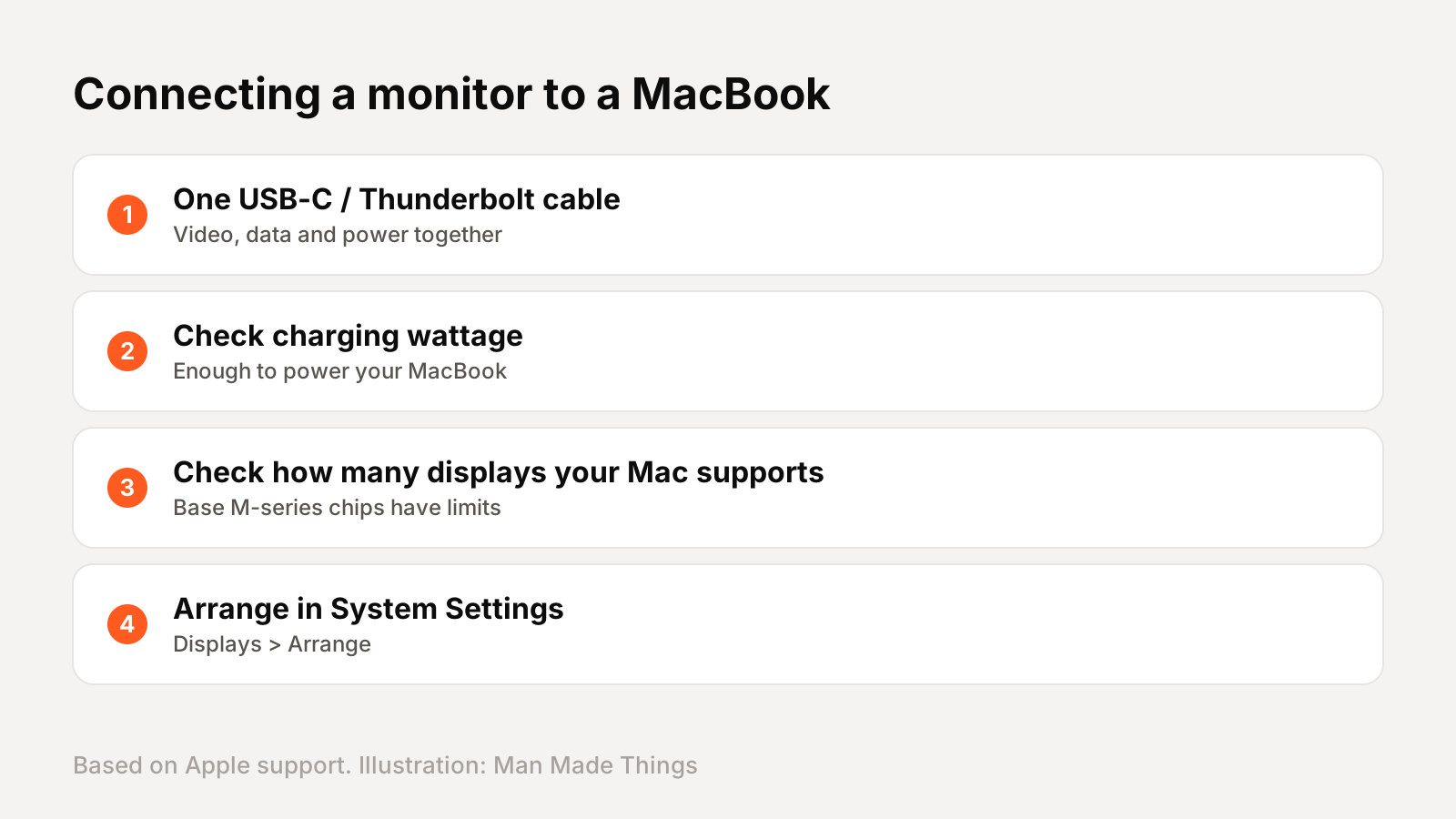
- Use one good cable. A single USB-C or Thunderbolt cable can carry video, charging and accessories. Use the cable that comes with the monitor, because many cheap USB-C charging cables don't carry video.
- Check the charging wattage. 65W covers a MacBook Air and light MacBook Pro use. Heavier work on a larger MacBook Pro may drain the battery slowly.
- Arrange your displays. In System Settings > Displays, you can set resolution and brightness, and choose whether to extend or mirror your desktop.
- If your Mac doesn't detect it, Apple suggests holding the Option key in Displays settings to reveal a Detect Displays button, and checking the cable and adapter.
Raise the monitor so the top of the screen is roughly at eye level. Both Dell picks have height-adjustable stands that make this easy.
Frequently asked questions
What is the best monitor for a MacBook?
+
The Apple Studio Display, with a 27-inch 5K Retina screen at 218 ppi, a built-in camera and speakers, and 96W charging over Thunderbolt 5.
Is a 4K monitor good enough for a Mac?
+
Yes. A 27-inch 4K screen is about 163 ppi, which looks sharp with macOS scaling, though not quite as crisp as 5K.
Can a monitor charge my MacBook?
+
Yes, if it supports USB-C power delivery. The Dell S2725QC and S2725DC charge at up to 65W, and the Studio Display at 96W.
Why does text look blurry on my external monitor?
+
Lower-density screens like 27-inch 1440p have fewer pixels per inch than macOS is designed for. A 4K or 5K screen looks sharper.
Sources
Editor-in-Chief
Rahul has been writing about gadgets and software since 2013, first at Thetechhacker and now at Man Made Things. He edits every review on the site and signs off on every verdict.
More from Rahul →