How to Pair Wireless Earbuds With a Windows 11 PC (and Fix It When It Won't Connect)
Three ways to connect Bluetooth earbuds to Windows 11, plus fixes for earbuds that won't show up, won't play sound, or sound terrible on calls.
We may earn a commission when you buy through links on this page. Learn more
Quick answer
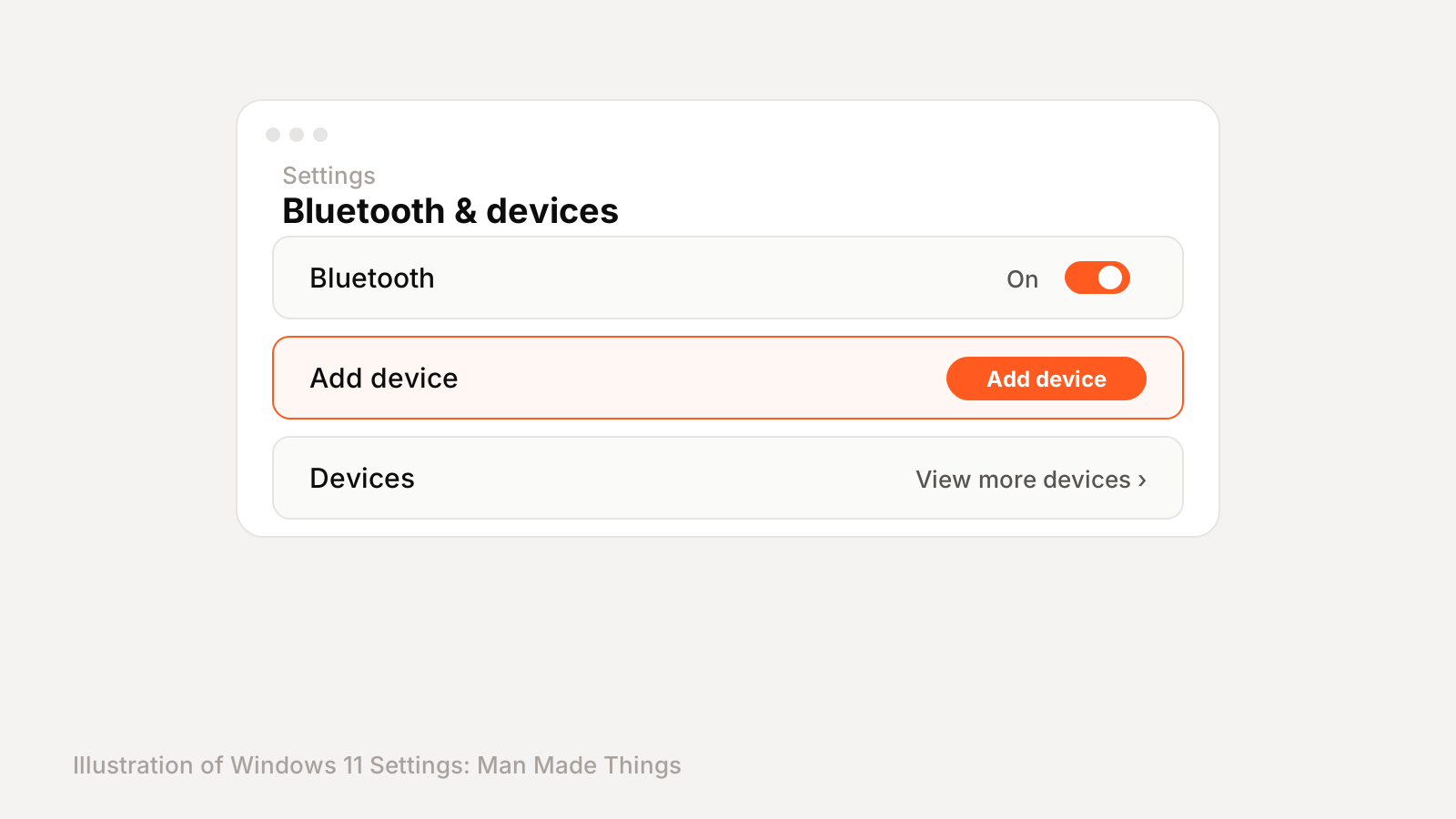
Put your earbuds in pairing mode, then open Settings > Bluetooth & devices on your PC, select Add device, choose Bluetooth and pick your earbuds from the list. If they don't appear, unpair them from your phone first or set Bluetooth devices discovery to Advanced.
Pairing earbuds with a phone takes five seconds. Pairing the same earbuds with a Windows laptop somehow turns into a 20-minute fight. The earbuds don't show up, or they connect and no sound comes out, or your voice sounds like it's coming through a tin can on a Zoom call.
Sounds familiar? The good news is that almost every one of these problems has a simple fix. Below are the three ways to pair earbuds in Windows 11, followed by the fixes for the most common problems.
Before you start: put your earbuds in pairing mode
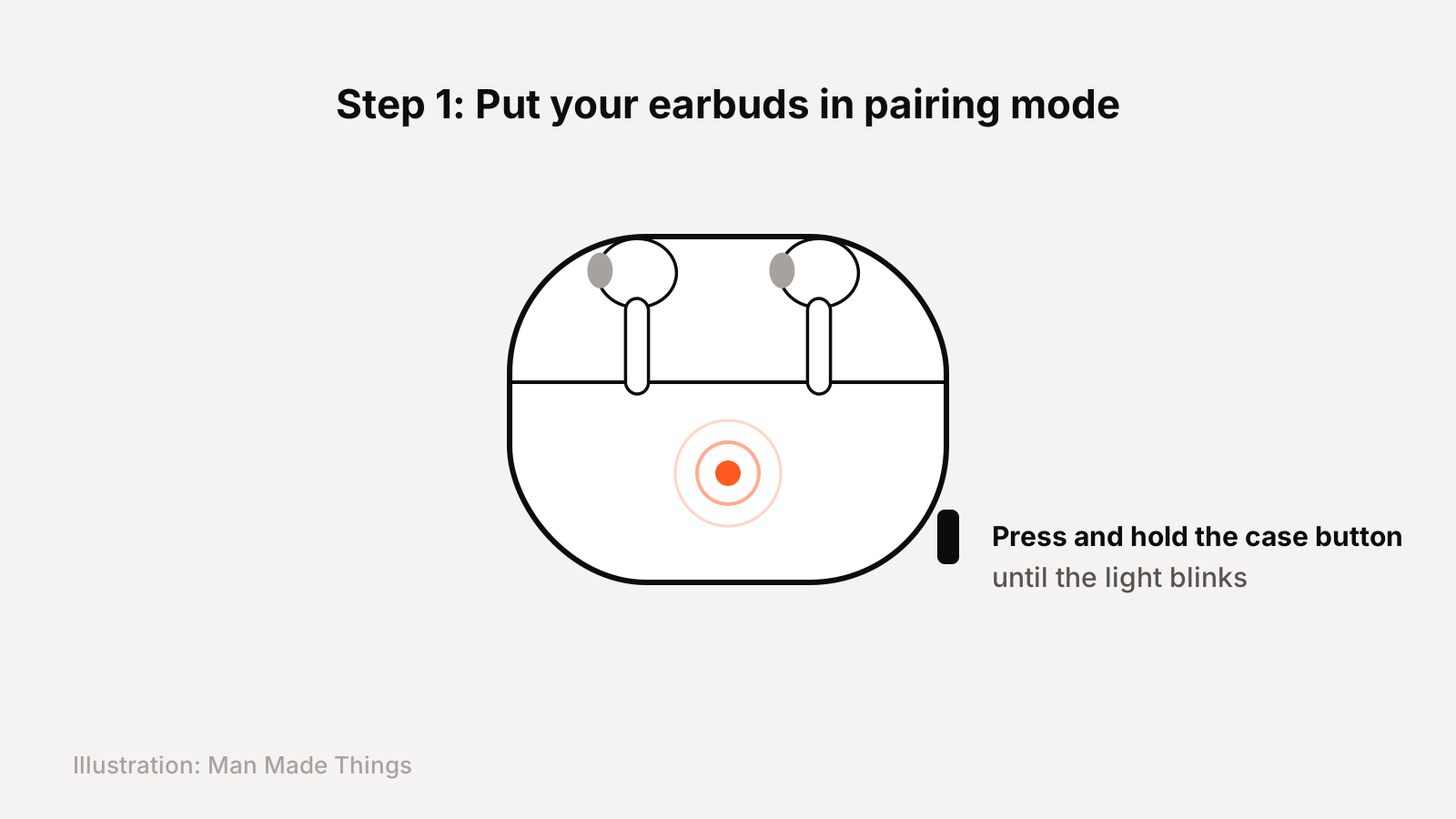
This is the step people skip, and it's the reason most pairing attempts fail. Your PC can only see earbuds that are actively looking for a new device.
For most earbuds, put both buds in the case, keep the lid open, and press and hold the button on the case until the light starts blinking. Some models have no case button and use a long press on both earbuds instead. If you're not sure, check your earbuds' manual or the brand's support page.
One more thing. If the earbuds are already connected to your phone, they may connect back to the phone instead of entering pairing mode. Turn off Bluetooth on your phone for a minute while you pair with the PC.
Method 1: Pair through Settings
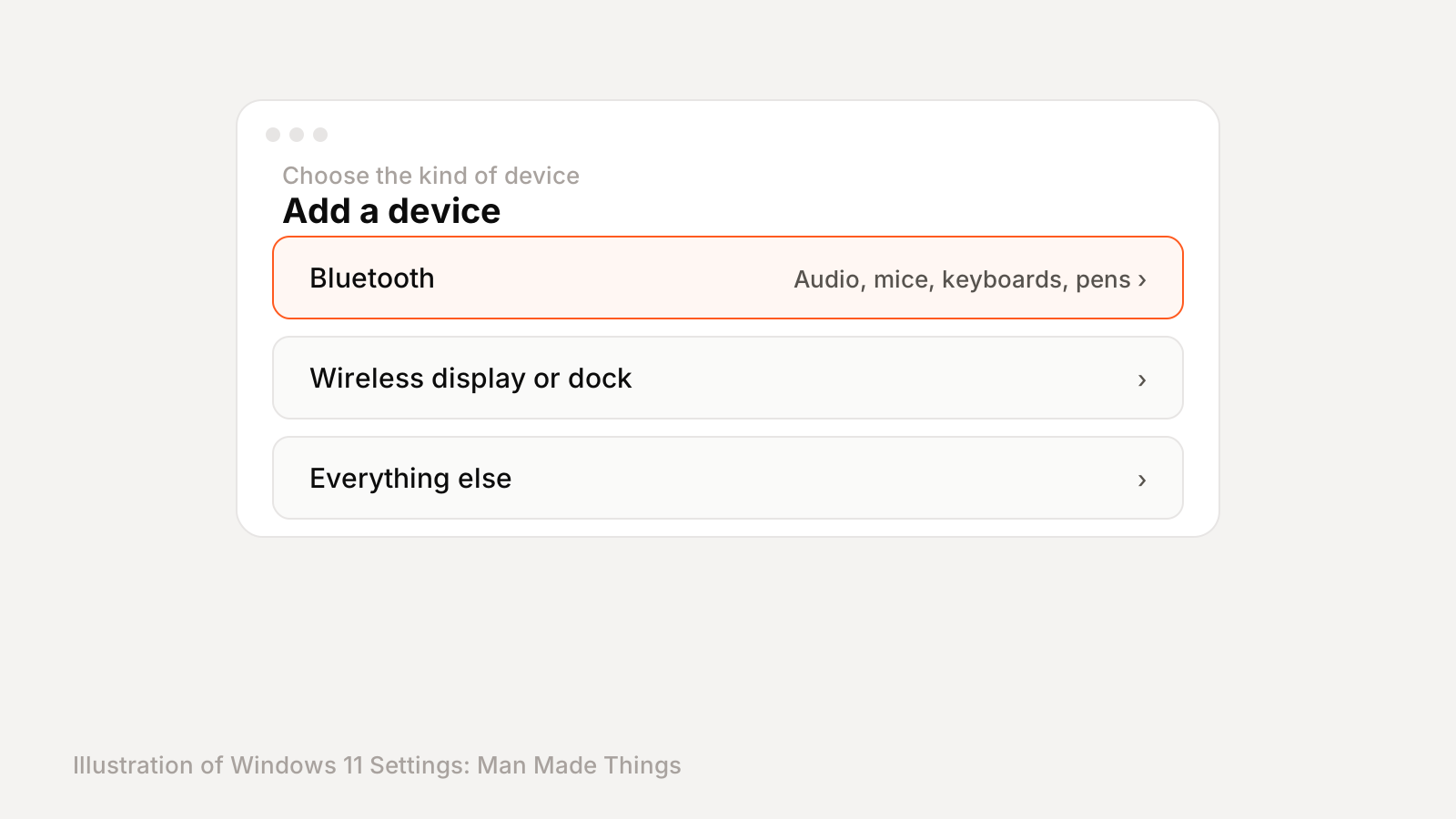
This is the method that works on every Windows 11 PC.
- Open Start, then go to Settings > Bluetooth & devices.
- Make sure the Bluetooth toggle is on.
- Select Add device, then choose Bluetooth.
- Wait for your earbuds to show up in the list, then select them.
- Follow any prompts. When it says your device is ready, select Done.
That's it. From now on, the earbuds should reconnect automatically whenever Bluetooth is on and they're in range.
Method 2: Pair from Quick Settings
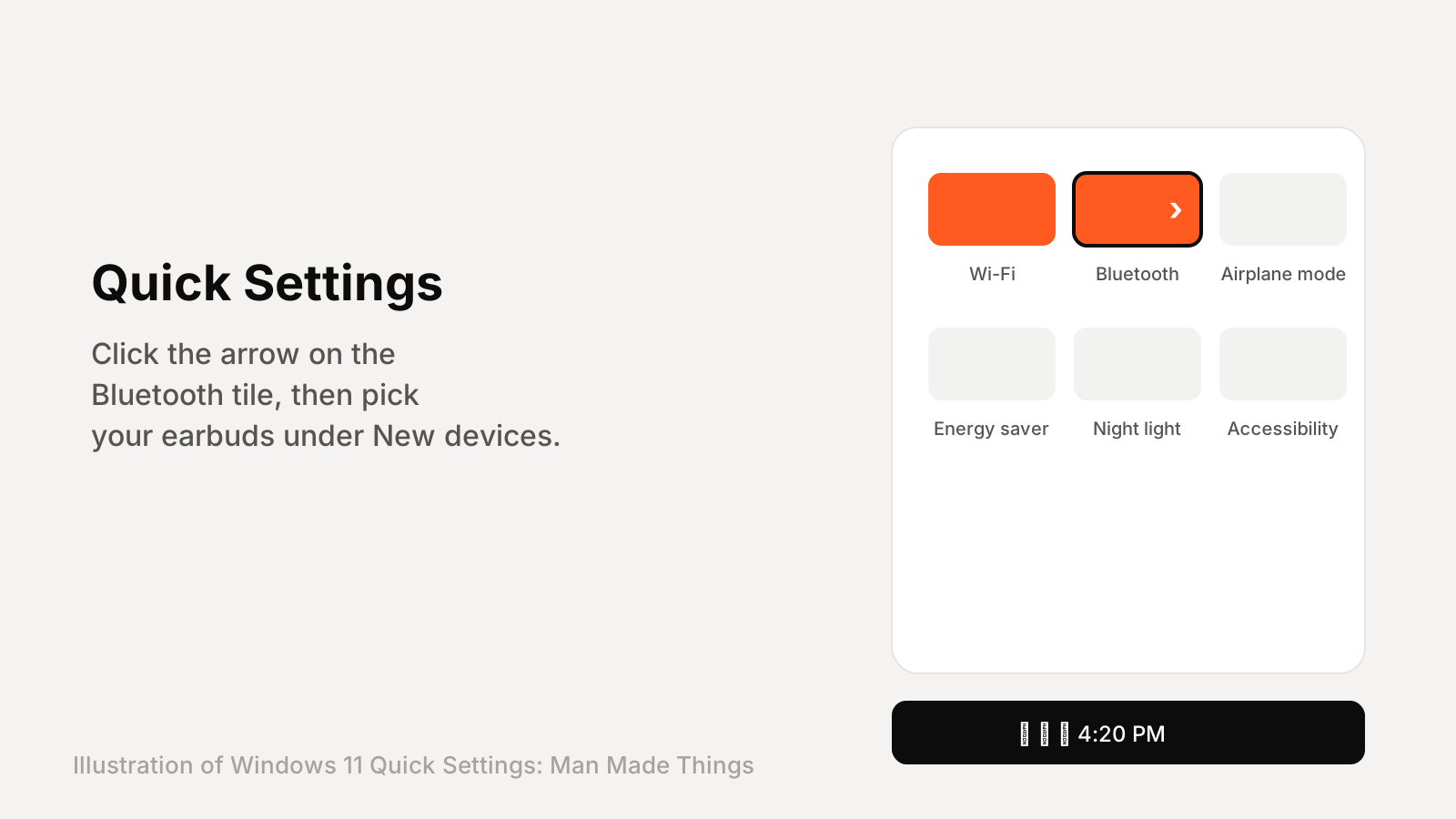
This one is faster once you know where to look.
- Click the Network, Sound or Battery icon near the clock on your taskbar.
- Select the small arrow next to the Bluetooth tile (Manage Bluetooth devices).
- Under New devices, select your earbuds.
- Follow any prompts, then select Done.
If you don't see a Bluetooth tile at all, you can add it back by editing your Quick Settings tiles.
Method 3: Swift Pair (the easiest way)
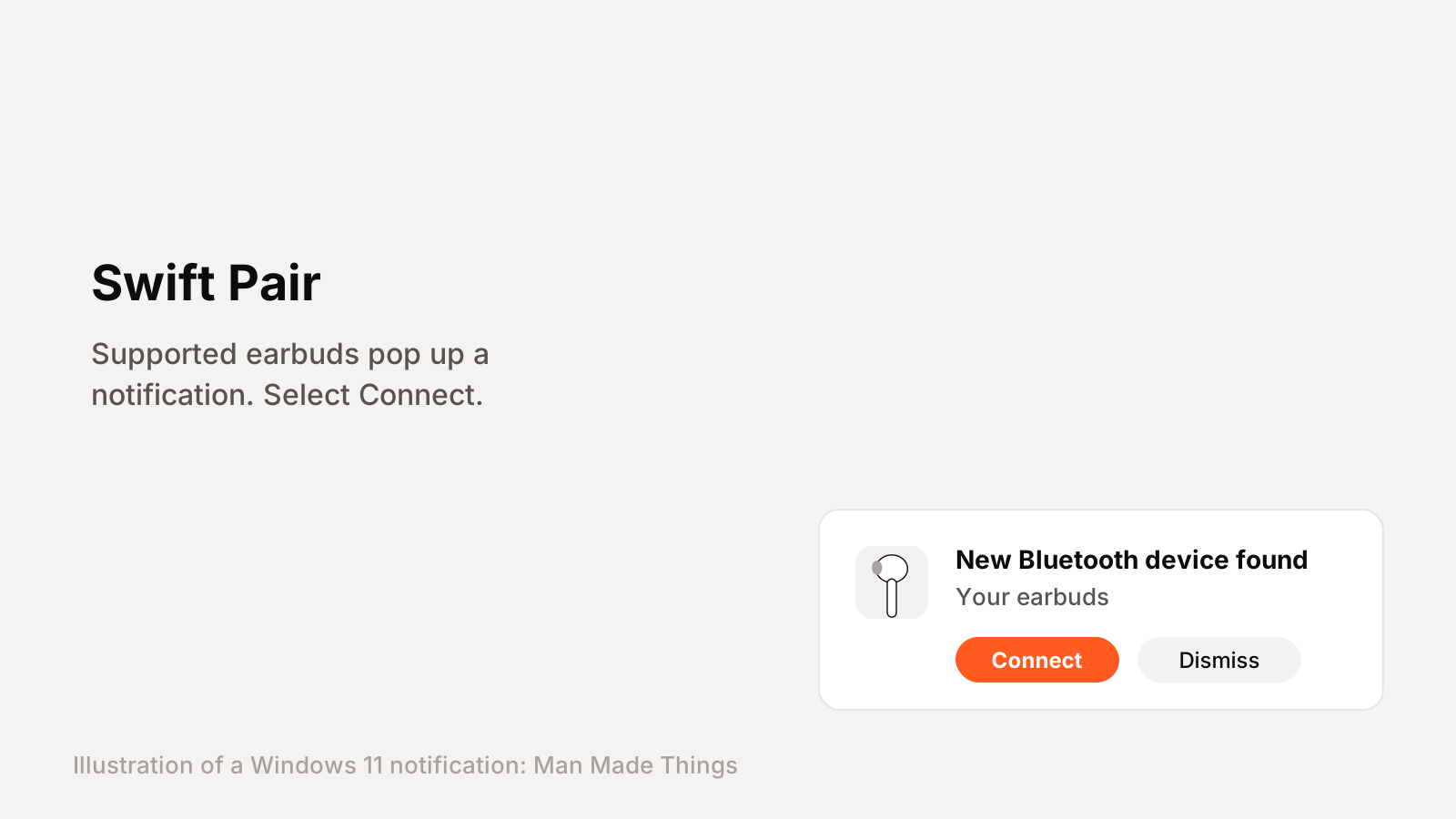
Some earbuds support Microsoft's Swift Pair. With these, you don't have to open Settings at all.
Put the earbuds in pairing mode near your PC. The first time, Windows asks if you want to get notifications to use Swift Pair. Select Yes. After that, a notification pops up whenever supported earbuds are nearby and ready to pair. Select Connect and you're done.
Earbuds not showing up? Try these fixes
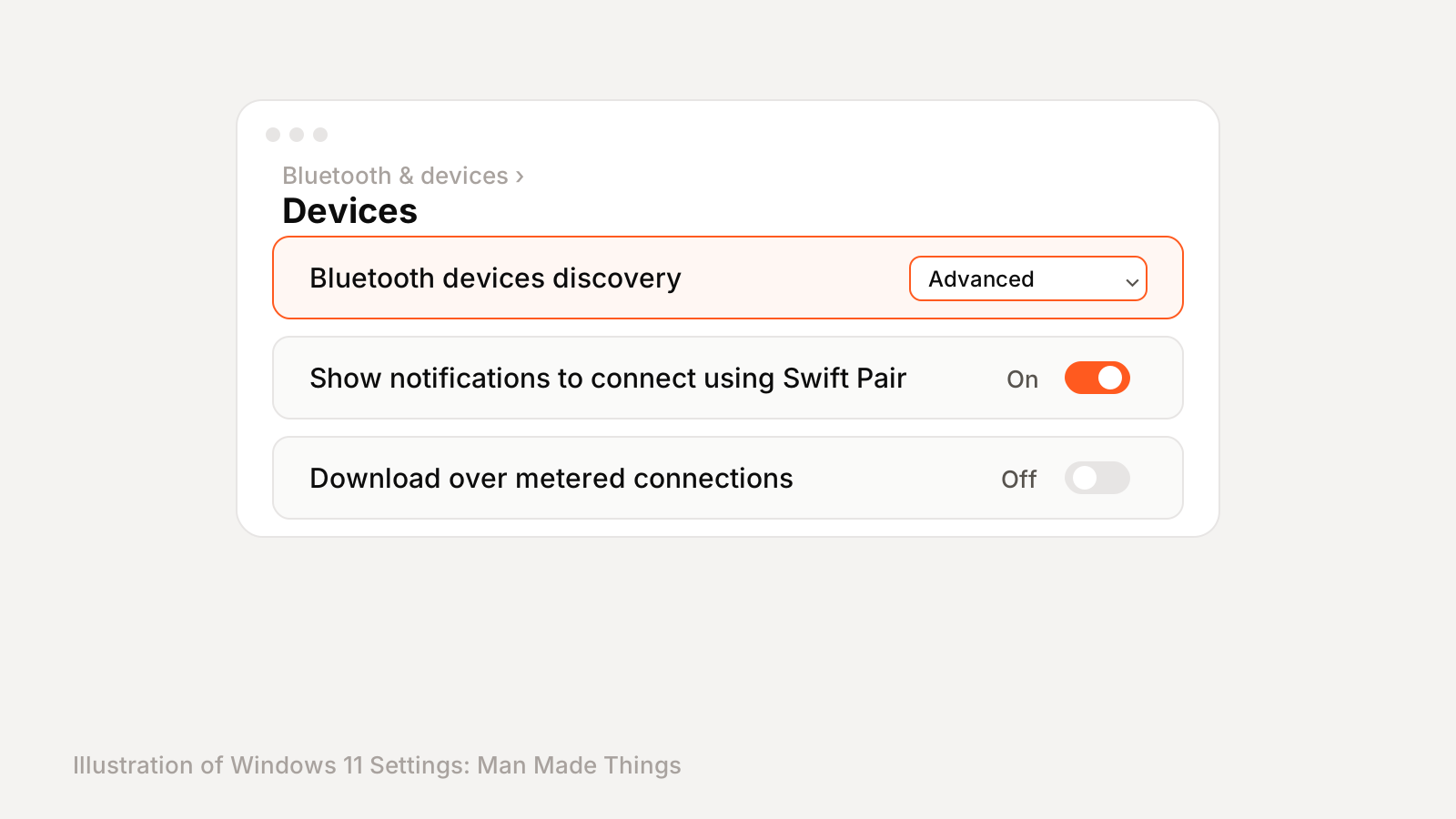
If your earbuds never appear in the list, go through these in order.
- Turn on Advanced discovery. In Settings > Bluetooth & devices > Devices, set Bluetooth devices discovery to Advanced. On the default setting, Windows hides some devices.
- Disconnect from your phone. As I said above, earbuds often prefer the last device they were connected to.
- Remove the old pairing. If you've paired these earbuds with this PC before, find them under Devices, select Remove device, then pair again from scratch.
- Reset the earbuds. Most earbuds have a factory reset, usually a long press on the case button. This clears every saved pairing.
- Check that your PC has Bluetooth. Most laptops do, but some desktops don't. A small USB Bluetooth adapter fixes that.
Connected but no sound? Check the output device
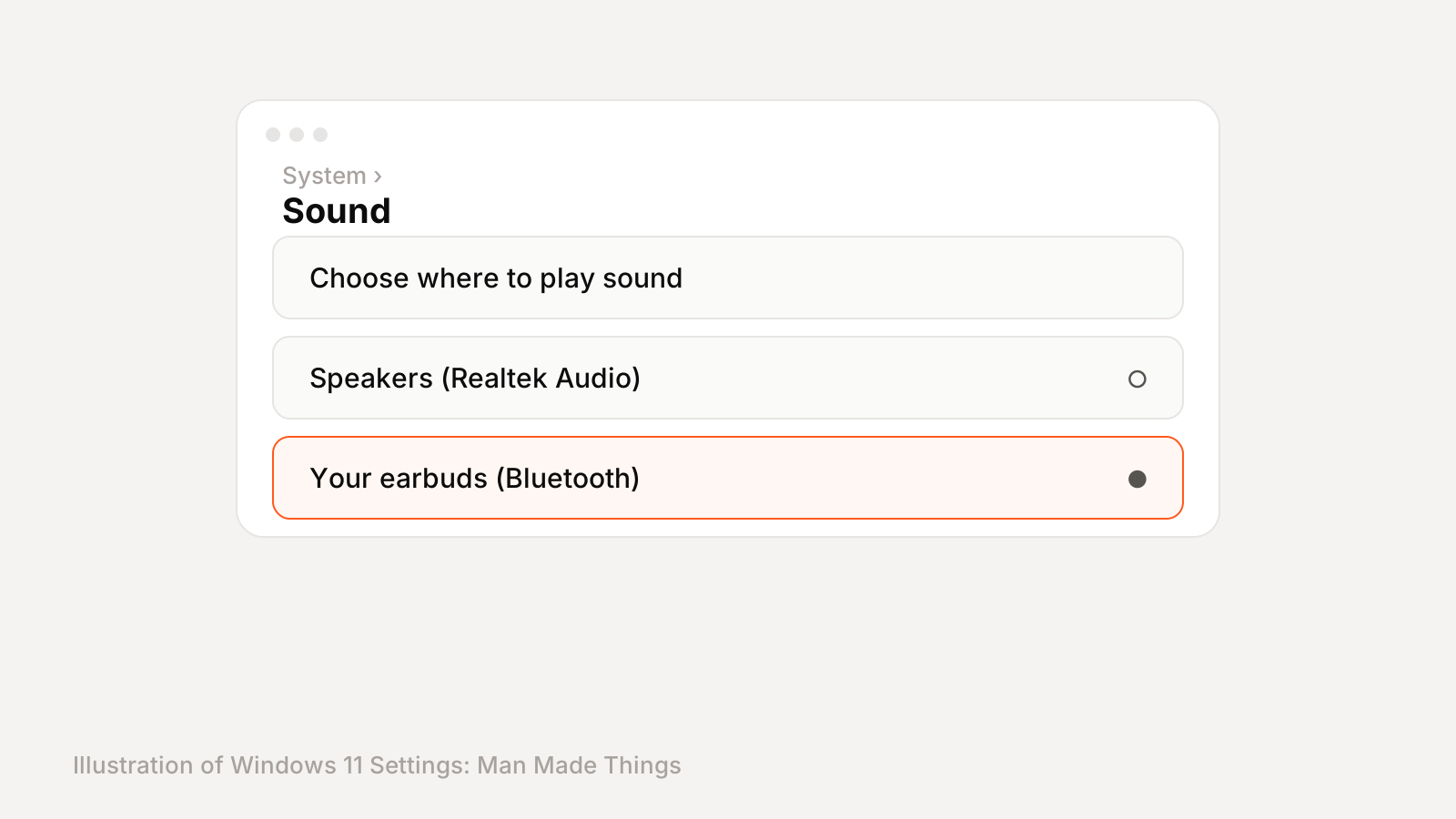
Windows doesn't always switch audio to your earbuds after pairing. Go to Settings > System > Sound and, under Output, choose your earbuds. You can also click the sound icon on the taskbar and pick them from the list there.
Apps like Zoom and Teams have their own audio settings too. If you can hear YouTube but not your meeting, open the app's audio settings and select your earbuds as both the speaker and the microphone.
Switching between your phone and PC
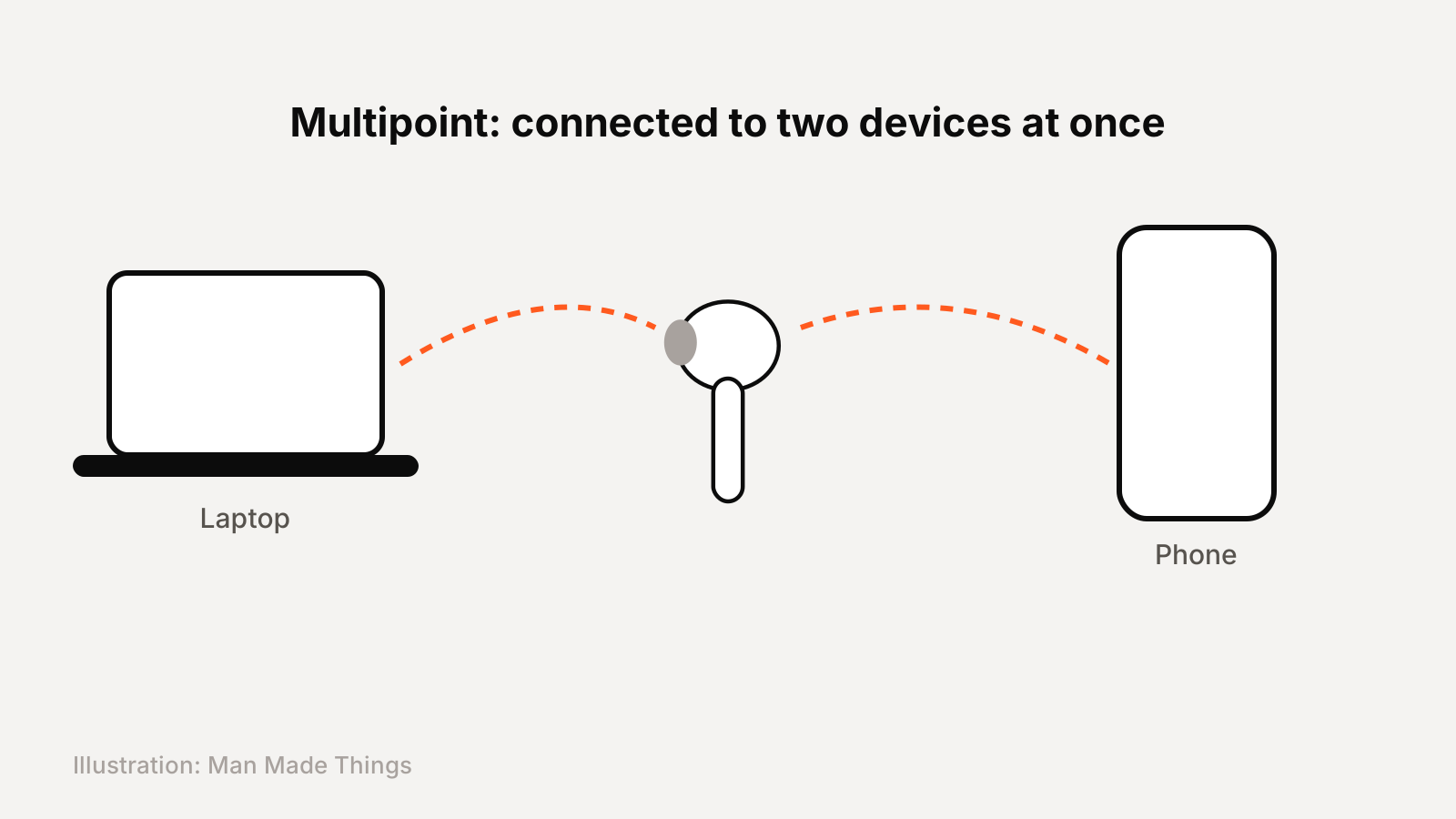
Once your earbuds are paired with both devices, switching can still be annoying. How easy it is depends on whether your earbuds support multipoint.
With multipoint, the earbuds stay connected to two devices at the same time. Start a video on your laptop and the audio moves over. Pick up a call on your phone and it moves back. Check your earbuds' spec sheet or app for this feature, since it's sometimes turned off by default.
Without multipoint, the earbuds only talk to one device at a time. To switch, disconnect them on one device, then open Settings > Bluetooth & devices on your PC and select Connect under your earbuds. It's clunky, but it works every time.
Why your earbuds sound bad on calls
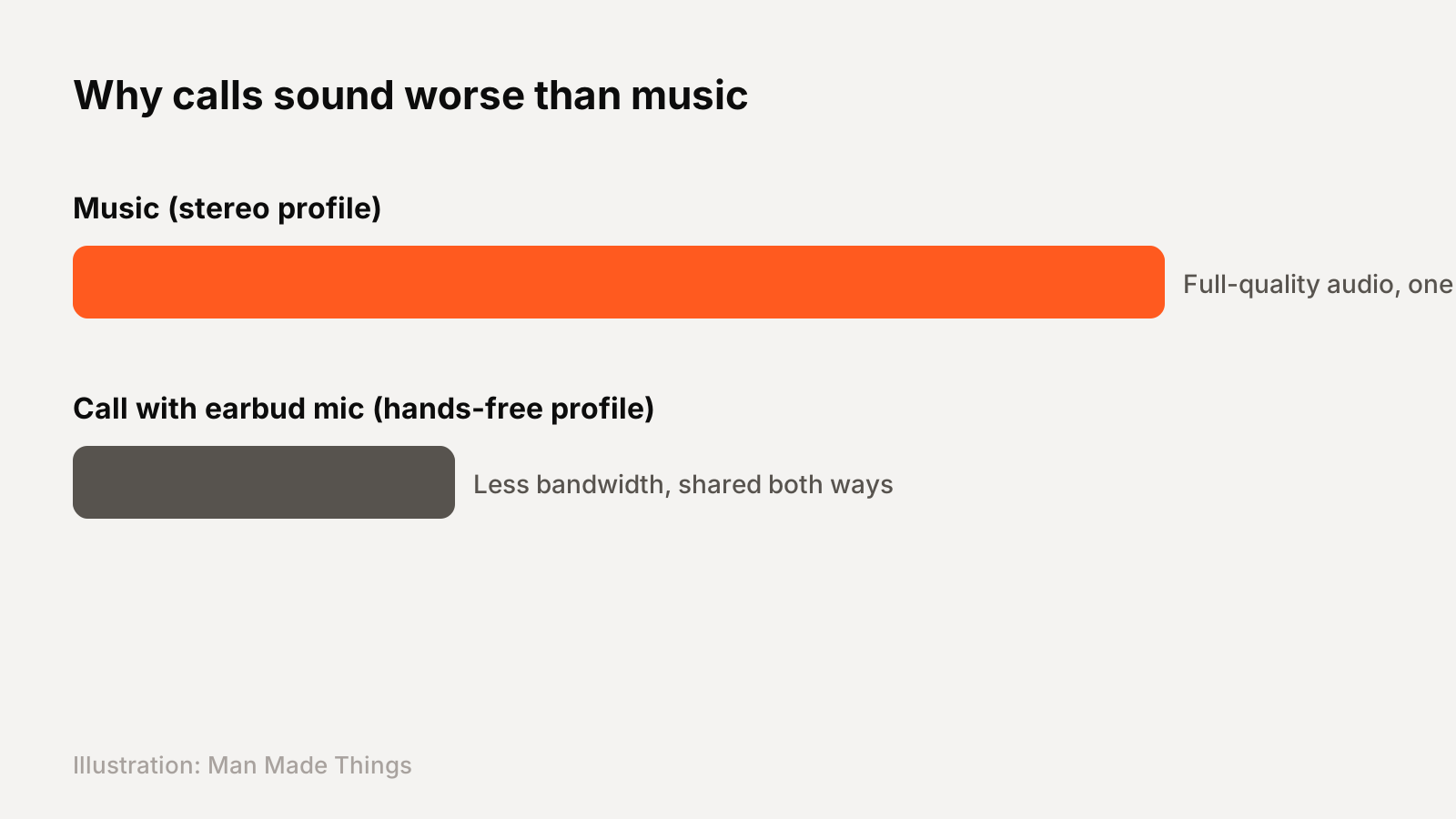
This one confuses a lot of people. Music sounds great, then you join a call and everything suddenly sounds flat and muffled.
It isn't your earbuds breaking. When you use the earbuds' microphone, Bluetooth switches to a hands-free profile so it can send your voice and receive audio at the same time. Older versions of that profile have far less bandwidth, so quality drops.
You have two fixes. Use your laptop's built-in microphone and keep the earbuds as speakers only, which keeps music-quality audio. Or, if you take a lot of calls, look for earbuds or headsets that support wideband or super wideband voice on Windows. Newer PCs and earbuds handle this much better than older ones.
Frequently asked questions
Why won't my earbuds connect to my Windows 11 laptop?
+
Most of the time the earbuds aren't in pairing mode or are still connected to your phone. Turn off Bluetooth on your phone, put the earbuds in pairing mode, and set Bluetooth devices discovery to Advanced in Windows Settings.
Can I connect AirPods to a Windows 11 PC?
+
Yes. Put AirPods in the case, open the lid and press and hold the setup button on the back of the case until the light flashes white (models without a button use a double-tap on the front of the case instead), then add them from Settings > Bluetooth & devices > Add device > Bluetooth.
How do I switch audio to my earbuds in Windows 11?
+
Go to Settings > System > Sound and choose your earbuds under Output, or click the sound icon on the taskbar and select them there.
Sources
Editor-in-Chief
Rahul has been writing about gadgets and software since 2013, first at Thetechhacker and now at Man Made Things. He edits every review on the site and signs off on every verdict.
More from Rahul →